

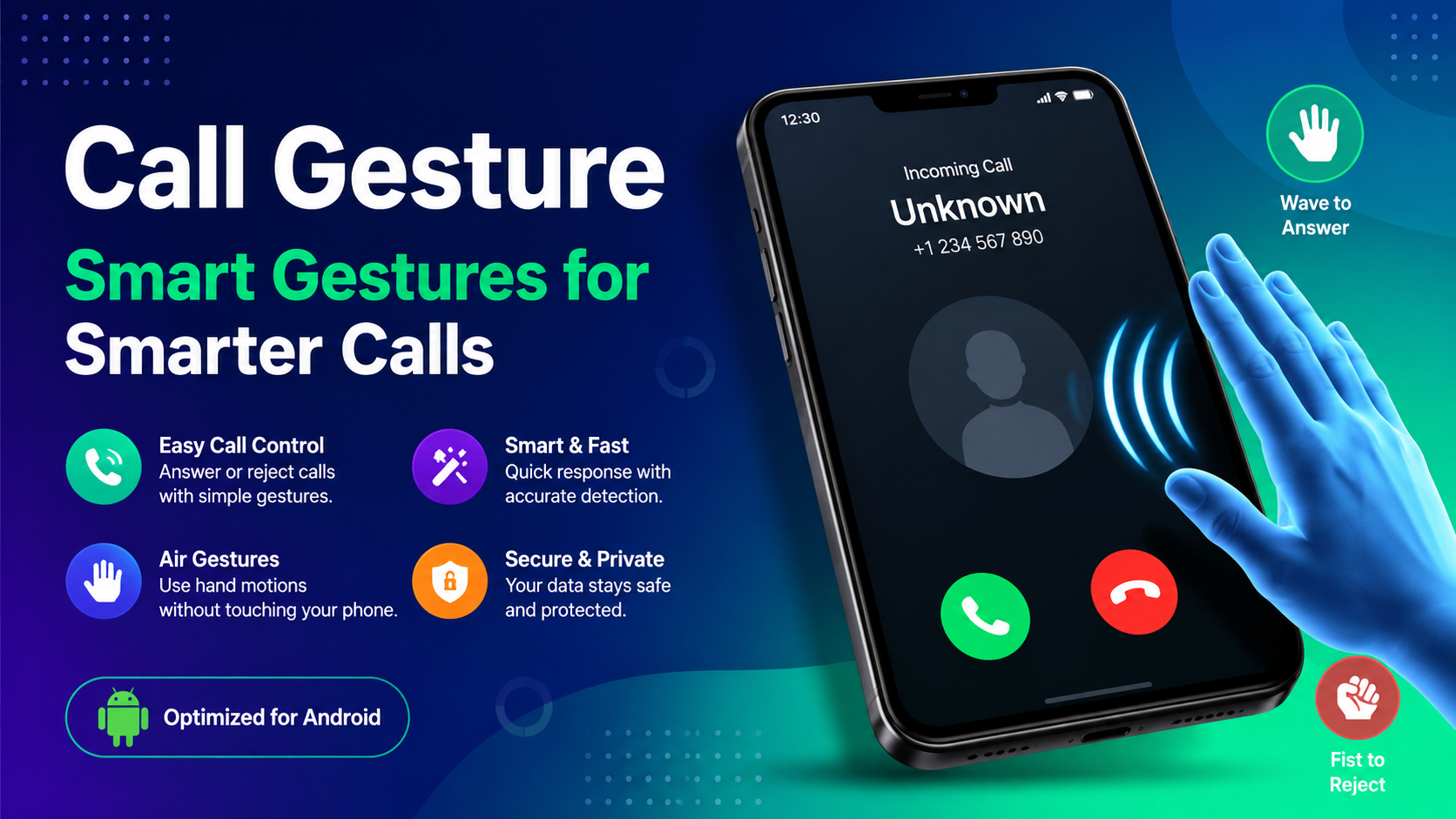
CallGesture is a simple and convenient app concept designed to make incoming phone calls easier to manage with hand gestures. Instead of immediately touching the display when your phone rings, CallGesture allows you to use a specific hand movement above the front camera to answer or reject an incoming call.
In everyday situations, touching your phone is not always convenient. Your hands may be wet, dirty, busy, or occupied with another task. You may also have your phone placed on a table where reaching the screen quickly is inconvenient. This is where CallGesture can provide a different and more comfortable way to interact with incoming calls.
The basic idea is easy to understand. When an incoming call appears, position your hand approximately 20 centimeters above the front camera and perform the supported gesture. The phone detects the movement and responds according to the selected action.
With CallGesture, answering a call can become a hands-free-style interaction. You can use the recommended gesture to answer the call and another gesture to reject it. The feature is designed around simple movements, making it easy for users to understand and practice.
If you are interested in learning how this technology works, how to use it, what gestures are supported, and how to improve its performance, this complete CallGesture guide explains everything in simple language.
What Is CallGesture?
CallGesture is a gesture-based call control application that allows users to interact with incoming calls through hand movements. Rather than depending completely on traditional touch controls, the application uses the phone’s front camera or compatible sensing capabilities to recognize a user’s hand gesture.
The main purpose of CallGesture is convenience. When the phone receives an incoming call, you can perform the supported hand movement above the front camera to control the call.
For example, the recommended answering gesture uses two extended fingers while keeping the palm facing toward the front camera. When the gesture is performed at the appropriate distance and angle, the application can recognize it as an instruction to answer the call.
A separate gesture can be used to reject an incoming call. The recommended rejection movement involves extending and spreading five fingers with the palm facing the front camera.
The concept behind CallGesture is straightforward: make call management faster and more natural by using gestures instead of requiring direct contact with the display.
How Does CallGesture Work?
Understanding how CallGesture works is important before using it. The application depends on gesture recognition to identify a specific movement made in front of the phone.
When an incoming call arrives, the user positions their hand approximately 20 centimeters above the front camera. The camera or supported sensing system detects the hand position and movement.
The application then compares the detected movement with its supported gesture patterns. If the movement matches an assigned action, the application performs the corresponding call function.
The process can generally be understood in four simple steps:
- An incoming call appears on the phone.
- You position your hand above the front camera.
- You perform the supported hand gesture.
- The phone recognizes the gesture and performs the assigned call action.
This approach makes CallGesture different from ordinary call controls because the user does not need to press the answer or reject button directly.
The accuracy of gesture detection can depend on several factors, including lighting, camera visibility, hand position, distance, movement speed, and the phone itself.
How to Answer a Call With CallGesture
One of the primary purposes of CallGesture is to make answering calls easier.
According to the instructions associated with the app, the answering gesture is performed approximately 20 centimeters above the front camera.
The recommended movement is simple:
- Extend your index finger.
- Extend your middle finger.
- Keep the other fingers positioned naturally.
- Face your palm toward the front camera.
- Place your hand at the recommended distance.
- Perform the supported movement when the phone rings.
The key is to keep the hand clearly visible to the camera. If the camera cannot properly see your fingers, the gesture may not be recognized.
With CallGesture, users should practice the gesture a few times before relying on it during important calls. Once you become familiar with the required position and movement, the interaction can become much more natural.
How to Reject a Call With CallGesture
Rejecting an incoming call is another important function.
The recommended rejection gesture uses an open hand. The user should extend and spread five fingers while keeping the palm facing toward the front camera.
When the phone receives an incoming call, position your hand at approximately the recommended distance and perform the gesture.
The basic process is:
- Wait for the incoming call screen.
- Move your hand above the front camera.
- Keep your palm facing the camera.
- Extend and spread your five fingers.
- Perform the supported gesture.
- Allow the application to recognize the movement.
The purpose of this gesture is to provide an alternative to manually pressing the reject button.
As with answering, the results can depend on the surrounding conditions and the phone’s ability to recognize the movement.
Why Use CallGesture?
There are several reasons why someone may want to try CallGesture.
The first is convenience. Touching a phone screen is normally easy, but there are situations where it is inconvenient. For example, you may be cooking, cleaning, working, exercising, or doing another activity.
A gesture-based system provides another way to interact with the incoming call interface.
Another advantage is speed. If the phone is placed nearby and the camera can clearly see your hand, performing a gesture can feel quick and natural.
CallGesture may also be useful for people who prefer alternative interaction methods. Instead of relying only on tapping and swiping, users can experiment with motion-based controls.
The system is especially interesting because it demonstrates how smartphone cameras can be used for more than taking photos and videos. Camera-based gesture recognition can create new methods of interacting with mobile devices.
Main Features of CallGesture
The core features of CallGesture are focused on controlling incoming calls through simple hand movements.
1. Gesture-Based Call Answering
The most important feature is the ability to answer an incoming call using a supported hand gesture.
Instead of directly touching the answer button, users can position their hand above the camera and perform the required movement.
2. Gesture-Based Call Rejection
The application also provides a gesture for rejecting incoming calls.
The open-palm gesture is designed to provide a clear visual movement that can be recognized by the system.
3. Hands-Free Interaction
CallGesture provides a touch-free approach to call management. This can be useful when touching the phone is inconvenient.
4. Simple Gestures
The supported gestures are designed around recognizable hand positions. The answering gesture uses two fingers, while the rejection gesture uses an open five-finger palm.
5. Front-Camera Interaction
The front camera plays an important role in the gesture recognition process. Users need to keep their hand within the camera’s viewing area.
6. Quick Call Control
The purpose of the system is to make answering or rejecting a call a quick interaction rather than requiring several screen actions.
CallGesture Step-by-Step Guide
If you are trying CallGesture for the first time, following a simple setup and usage routine can make the experience easier.
Step 1: Install the Application
Start by installing the appropriate CallGesture application on your compatible Android device.
Before installing any application, make sure you understand the permissions it requests and only use software from a source you trust.
Step 2: Open CallGesture
After installation, launch the application and review the available instructions.
The app should explain the gestures and how they should be performed.
Step 3: Understand the Answer Gesture
Practice the two-finger answering gesture.
Keep your index and middle fingers extended, face your palm toward the camera, and position your hand at the recommended distance.
Step 4: Practice the Reject Gesture
Next, practice the open-palm rejection gesture.
Extend and spread your five fingers while keeping the palm facing the front camera.
Step 5: Test the Gestures
Before depending on the feature for important calls, perform several test attempts.
Practice helps you understand how far your hand should be from the camera and how quickly the gesture should be performed.
Step 6: Use It During an Incoming Call
When a call arrives, place your hand in the appropriate position and perform the gesture assigned to the desired action.
Best Distance for CallGesture
Distance is an important part of successful gesture recognition.
The instructions for CallGesture recommend performing the gesture approximately 20 centimeters above the front camera.
If your hand is too close, the camera may not capture the complete gesture properly. If it is too far away, the hand may become too small for reliable recognition.
For this reason, start by following the recommended distance. After testing the application, you can determine the position that works best with your particular phone.
The camera angle is also important. Keep your palm facing the front camera and avoid performing the gesture outside the camera’s visible area.
Tips for Better CallGesture Recognition
Sometimes a gesture may not work immediately. This does not necessarily mean the application is broken. Several environmental factors can affect recognition.
Keep Your Hand Visible
Make sure your hand is clearly visible to the front camera.
If another object blocks your hand, the system may have difficulty identifying the gesture.
Use Good Lighting
Good lighting can help the camera detect your hand more clearly.
Avoid extremely dark environments when testing the feature.
Follow the Correct Gesture
Do not create random hand movements. Follow the recommended finger positions carefully.
For answering, use the two-finger gesture. For rejecting, use the open five-finger gesture.
Maintain the Correct Distance
Start at approximately 20 centimeters above the camera.
Moving your hand too close or too far away can reduce recognition accuracy.
Face the Palm Toward the Camera
The orientation of your hand matters.
Try to keep your palm facing the front camera rather than turning your hand sideways.
Avoid Very Fast Movements
A controlled movement can be easier for a gesture-recognition system to detect than an extremely fast movement.
Perform the gesture naturally and clearly.
CallGesture Not Working? Try These Fixes
If CallGesture does not respond correctly, there are several basic troubleshooting steps you can try.
Check Camera Access
If the application depends on camera-based gesture recognition, make sure the necessary camera permission is available.
Without appropriate access, the gesture recognition feature may not function correctly.
Clean the Front Camera
A dirty camera lens can reduce image quality.
Gently clean the front camera area with an appropriate soft cloth and try again.
Improve Lighting
Move to a brighter location and test the gesture again.
Strong backlighting can also make hand detection more difficult, so try to position yourself where the camera can clearly see your hand.
Check Your Hand Position
Make sure your hand is around the recommended distance and inside the camera’s viewing area.
Restart the Application
If the application temporarily stops responding, close it and open it again.
A simple restart can sometimes resolve temporary software issues.
Restart Your Phone
If the problem continues, restart the device and test the feature again.
Practice the Gesture
Recognition can improve once you understand exactly how the gesture needs to be performed.
Try several controlled movements rather than changing multiple things at the same time.
Is CallGesture Easy to Use?
For users who understand the basic gestures, CallGesture can be relatively straightforward.
The main learning point is remembering which gesture performs each action.
The answering gesture uses two extended fingers, while the rejection gesture uses an open hand with five fingers spread.
Once these movements become familiar, users can perform them without thinking too much about the individual steps.
However, gesture-based controls may require a short adjustment period. Traditional touch controls are familiar to almost every smartphone user, while motion controls require users to learn the correct position, distance, and movement.
Advantages of CallGesture
There are several potential advantages to using CallGesture.
Convenient interaction: You can manage calls without immediately touching the display.
Simple gestures: The system is based on recognizable hand positions.
Quick response: A successful gesture can provide a fast way to answer or reject an incoming call.
Alternative control method: Users get another way to interact with their phone.
Useful in different situations: Touch-free interaction can be convenient when your hands are occupied or when touching the phone is undesirable.
Easy concept: The idea behind the application is simple enough for most smartphone users to understand.
Limitations of CallGesture
Although CallGesture can be convenient, it is important to understand that gesture recognition is not perfect in every environment.
Camera-based recognition can be affected by lighting, distance, camera visibility, hand position, and device compatibility.
The feature may also require some practice. Users who perform the gesture incorrectly may experience missed recognition.
Another limitation is that not every smartphone has identical camera capabilities or software behavior. Performance can therefore vary between devices.
For these reasons, CallGesture should be viewed as a convenient alternative interaction method rather than something that should always be expected to work perfectly in every situation.
CallGesture and Everyday Smartphone Use
Modern smartphones increasingly provide different ways to interact with devices. Touchscreens remain the primary control method, but cameras, sensors, voice commands, and motion detection can offer additional options.
CallGesture fits into this broader idea of making smartphone interaction more flexible.
Imagine your phone is lying on a desk while you are working. An incoming call appears, but you do not want to stop what you are doing immediately. A gesture-based system can give you another option for handling the call.
Similarly, if your hands are occupied, gesture interaction may provide an alternative when direct touchscreen interaction is inconvenient.
The biggest value of CallGesture is therefore not that it completely replaces traditional call controls. Instead, it adds another interaction method for specific situations.
Who Can Benefit From CallGesture?
CallGesture may appeal to different types of smartphone users.
People who frequently receive calls while working may appreciate a quick gesture-based option.
Users who often place their phones on desks, tables, or stands may also find the concept convenient.
People who enjoy experimenting with smartphone features may be interested in gesture recognition technology.
It can also be useful for anyone who wants an alternative to repeatedly touching the screen during incoming calls.
The usefulness ultimately depends on the user’s phone, environment, and personal preferences.
How to Get Better Results From CallGesture
To get the best possible experience, consistency is important.
Use the same approximate distance each time. Keep your palm facing the front camera. Perform the gesture clearly and avoid unnecessary movements.
You should also test the feature under the conditions in which you normally receive calls.
For example, if you frequently use your phone indoors, test CallGesture indoors. If your phone is usually placed on a desk, test it while the phone is positioned on the desk.
This helps you understand how the feature behaves in your normal environment.
CallGesture vs Traditional Call Controls
Traditional call controls require users to interact directly with the touchscreen. Usually, you tap or swipe the appropriate button to answer or reject a call.
CallGesture introduces a different approach.
Instead of touching the screen, you perform a hand movement in front of the camera.
Neither method is necessarily better for every person. Traditional controls are familiar and generally reliable, while gesture controls can be convenient in situations where touching the screen is inconvenient.
The biggest advantage of CallGesture is therefore flexibility. Users can have another method available when they need it.
Privacy and Permissions
Before using any application that relies on camera-based features, it is important to review its permissions.
Because CallGesture uses gesture recognition around the front-camera area, users should understand what camera access is requested and why it is needed.
Only grant permissions that are necessary for the application’s intended functions.
Users should also review the application’s available settings and privacy information before regular use.
Being aware of permissions is a good general smartphone habit and can help users make more informed decisions about the applications installed on their devices.
FAQs
What is CallGesture?
CallGesture is a gesture-based call control application that allows users to answer or reject incoming calls using supported hand movements above the phone’s front camera.
How do I answer a call with CallGesture?
Use the recommended answering gesture approximately 20 centimeters above the front camera. Extend your index and middle fingers with your palm facing the camera.
How do I reject a call?
Use the recommended open-palm gesture. Extend and spread five fingers with your palm facing toward the front camera.
How far should my hand be from the camera?
The provided instructions recommend approximately 20 centimeters above the front camera.
Why is CallGesture not detecting my hand?
Check the lighting, camera visibility, hand position, distance, and gesture shape. Make sure your hand is clearly visible to the front camera.
Does CallGesture work on every phone?
Performance can vary depending on the device, camera, operating system, permissions, and environmental conditions. Check compatibility before relying on the feature.
Is CallGesture difficult to learn?
The basic gestures are simple, but users may need a little practice to become comfortable with the correct distance and hand position.
Can I use CallGesture when my phone is on a table?
The feature can be useful when the phone is positioned on a nearby surface, provided the front camera can clearly see the gesture and the application is functioning correctly.
Does CallGesture replace normal call controls?
No. Gesture controls are best understood as an alternative interaction method. Traditional touchscreen controls can still be useful when gesture recognition is unavailable or inconvenient.
Final Thoughts on CallGesture
CallGesture offers an interesting way to manage incoming phone calls through simple hand movements. Instead of relying exclusively on touchscreen controls, users can experiment with gesture-based interaction by positioning their hand above the front camera.
The answering gesture uses two extended fingers with the palm facing the camera, while the rejection gesture uses an open hand with five fingers spread. The recommended distance is approximately 20 centimeters above the front camera.
The concept is particularly useful when touching the phone is inconvenient. Whether your hands are occupied, your phone is placed on a desk, or you simply want to try a different way of controlling incoming calls, CallGesture provides an alternative interaction method.
For the best experience, users should practice the gestures, maintain the correct distance, keep the hand visible, and use suitable lighting. If recognition does not work immediately, checking camera access, cleaning the camera, improving lighting, and adjusting hand position can help.
Overall, CallGesture demonstrates how gesture recognition can make everyday smartphone interaction more flexible. It does not need to replace traditional call controls to be useful. Instead, it can serve as an additional option for users who want a faster and more convenient way to answer or reject calls.
If you are interested in gesture-based smartphone interaction, CallGesture is worth exploring to understand how simple hand movements can be used to control incoming calls.