

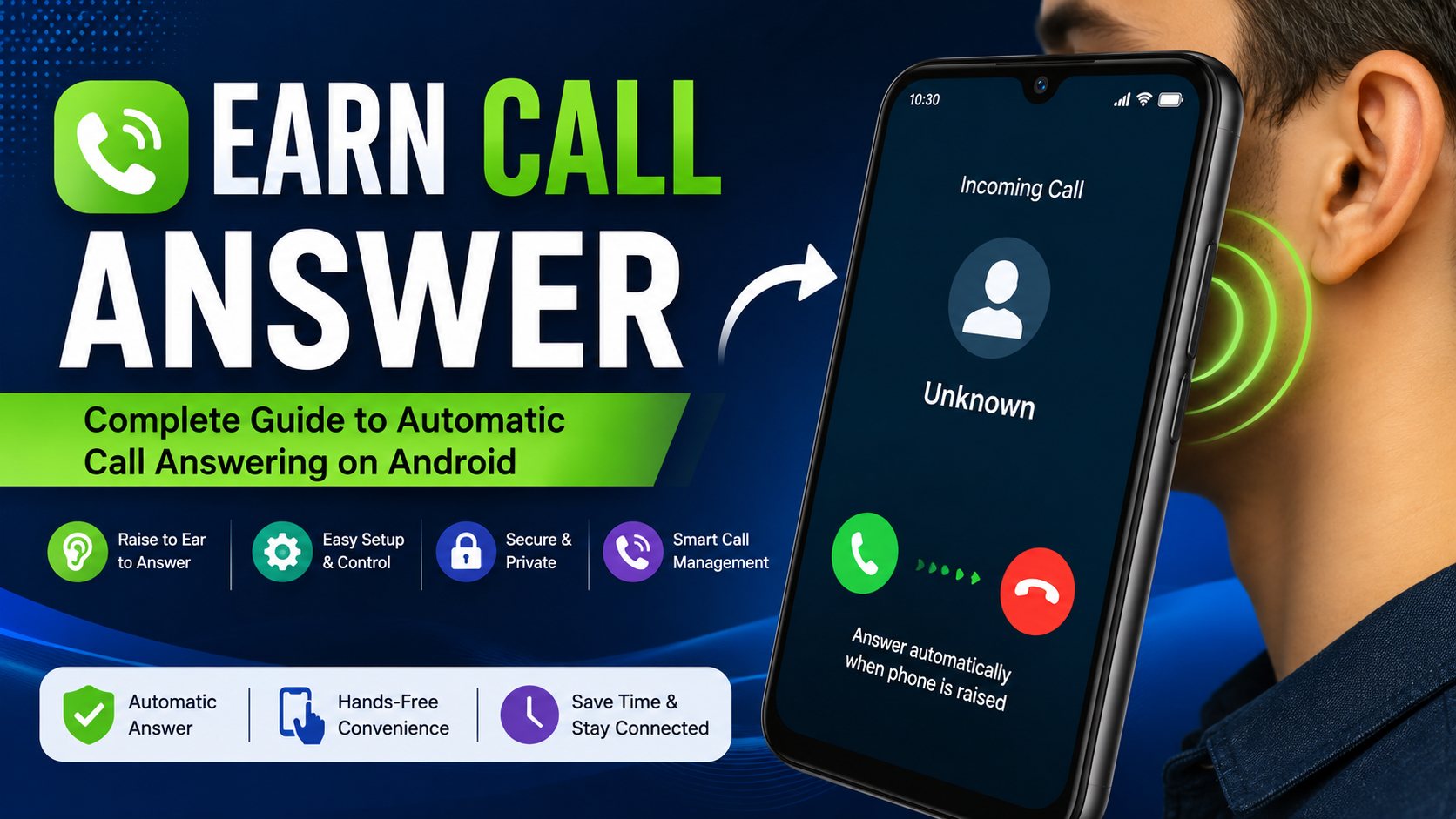
Earn Call Answer is a useful concept for Android users who want a simpler way to handle incoming phone calls. Instead of repeatedly touching the screen, searching for the answer button, or swiping whenever the phone rings, an automatic call-answering feature can make the process more convenient.
The main idea behind Earn Call Answer is simple: when an incoming call arrives, the phone can detect a particular movement or position and respond automatically. One of the most useful approaches is raising the phone toward your ear. When properly configured, the feature can help reduce the need for manual interaction with the screen.
This type of functionality can be especially helpful when your hands are busy, when you are walking, when the phone is difficult to operate quickly, or when you simply prefer a more natural way of answering calls.
In this complete guide, we will explain Earn Call Answer, how it works, its important features, setup considerations, permissions, advantages, limitations, common problems, and practical tips for getting better results.
What Is Earn Call Answer?
Earn Call Answer refers to an automatic call-answering approach designed to make incoming calls easier to accept. Rather than relying completely on the traditional touchscreen answer button, the system can use phone sensors and accessibility functionality to recognize a specific action.
The basic concept is straightforward. Your smartphone receives an incoming call, the automatic answering feature detects the configured movement or condition, and the call can then be accepted without requiring the normal swipe or tap.
A commonly described method involves bringing the phone close to your ear. This creates a natural interaction because people already raise their phones toward their ears when they want to speak.
The goal of Earn Call Answer is therefore convenience. It does not necessarily replace the normal phone application. Instead, the automatic function can work alongside the existing call interface, depending on the Android device and the permissions available.
Because Android phones use different hardware, software versions, and manufacturer interfaces, the exact behavior can vary from one device to another.
How Does Earn Call Answer Work?
Understanding how Earn Call Answer works makes it easier to configure the feature correctly.
When someone calls your phone, the incoming-call screen normally appears with options to accept or reject the call. An automatic answering system can interact with this process by using device sensors and accessibility capabilities.
The process can generally be understood in several stages:
1. An incoming call arrives
The phone receives a normal cellular call. The ringtone and incoming-call interface appear according to your phone’s settings.
2. The phone detects an action
Depending on the configuration, the system may monitor the phone’s position, movement, or proximity to the user’s ear.
3. The required condition is recognized
When the configured action is detected, the automatic answering function can perform the appropriate call command.
4. The call is answered
If everything is compatible and the required permissions are enabled, the incoming call can be accepted automatically.
5. You can begin talking
Once the call is connected, you can use the phone normally for the conversation.
This approach can make Earn Call Answer particularly convenient for people who want fewer screen interactions during incoming calls.
Key Features of Earn Call Answer
There are several features that make an automatic call-answering solution useful.
Automatic Incoming Call Answering
The most important function is automatic answering. Instead of manually swiping across the screen, the phone can respond when the configured condition is detected.
Raise-to-Ear Convenience
A raise-to-ear action provides a natural way to interact with an incoming call. Most people already understand the movement, so there is little learning involved.
Easy Enable and Disable Controls
A useful automatic call-answering system should allow users to turn the feature on or off whenever necessary. This is important because not every situation is suitable for automatic answering.
Existing Phone Interface Support
The concept can work with the phone’s existing call interface instead of forcing users to replace their normal phone application.
Call Ending Options
Some automatic answering solutions also provide options for ending an active call through a particular movement or phone position.
Ringtone Management
Another useful function can be reducing or changing the ringtone behavior after the phone is picked up. This can make the interaction less disruptive.
Delay Settings
Some configurations can provide a short delay before automatically ending a call. This gives users time to decide whether they want to remain connected.
Accessibility-Based Controls
Accessibility functionality can allow an application to interact with call controls that would otherwise require manual screen interaction.
These features explain why Earn Call Answer can be attractive to users who prefer hands-free or low-touch call management.
How to Set Up Earn Call Answer
Setting up Earn Call Answer is generally straightforward, although the exact menus can differ depending on the Android version and smartphone manufacturer.
Step 1: Install the Required Application
First, install the automatic call-answering application on your compatible Android device.
Always make sure that you understand what you are installing and only enable features you are comfortable using.
Step 2: Open the Application
Launch the application after installation. Look for the main automatic-answering option.
Step 3: Enable Automatic Answering
Turn on the automatic call-answering function. Some applications may provide a simple switch or toggle.
Step 4: Grant Required Permissions
Automatic call controls may require accessibility or other system permissions. Android will normally display a permission screen explaining what the service can do.
Read the permission information carefully before enabling it.
Step 5: Configure the Detection Method
If the application provides a raise-to-ear or proximity-based option, enable the method you prefer.
Step 6: Test the Feature
Ask someone to call your phone and test the feature. Keep the first test simple so you can determine whether the detection works correctly.
Step 7: Adjust the Settings
If the feature answers too quickly, too slowly, or behaves unexpectedly, check the available settings and make suitable adjustments.
Correct configuration is one of the most important factors when using Earn Call Answer.
Why Use Earn Call Answer?
The biggest advantage of Earn Call Answer is convenience.
Traditional incoming calls require users to interact with the screen. That is normally easy, but there are situations where touching the display is inconvenient.
For example, imagine that your hands are occupied while working. Your phone starts ringing, and you need to answer it quickly. An automatic answering feature may reduce the amount of interaction required.
The same idea can be useful when:
- Your hands are busy.
- You are walking.
- You are carrying something.
- You do not want to repeatedly swipe the screen.
- You prefer simple phone controls.
- You want a more natural call-answering gesture.
- You have difficulty interacting with small touchscreen controls.
For these situations, Earn Call Answer can provide an alternative to traditional call answering.
Earn Call Answer and Hands-Free Convenience
Hands-free convenience is one of the strongest reasons users may consider automatic call answering.
Modern smartphones are powerful, but many everyday actions still require touching the display. Answering a phone call is a good example. When a call arrives, the user normally needs to interact with the incoming-call interface.
An automatic solution can reduce this interaction.
However, users should understand the difference between automatic answering and completely hands-free communication. Answering the call automatically does not necessarily mean that every part of the conversation is hands-free.
You may still need to hold the phone, use a headset, activate speakerphone, or use another appropriate audio setup.
Therefore, Earn Call Answer should be viewed primarily as a convenient call-control feature rather than a complete replacement for hands-free equipment.
Permissions and Accessibility
Permissions are an important part of any application that interacts with incoming calls.
An automatic answering application may require accessibility functionality because Android restricts applications from performing certain system actions without appropriate authorization.
The accessibility service may allow the application to interact with call controls and display elements.
Before enabling an accessibility service, users should carefully review what the application says the permission is used for.
A responsible approach is simple:
- Read the permission description.
- Understand why the application needs it.
- Enable only necessary permissions.
- Disable the permission if you stop using the feature.
- Install applications from trustworthy sources whenever possible.
For Earn Call Answer, permission management is especially important because call controls involve sensitive device functionality.
Does Earn Call Answer Work on Every Android Phone?
No automatic call-answering feature should be assumed to work identically on every Android phone.
Android devices vary considerably. Different manufacturers may modify the operating system, phone application, permission system, battery management, and background-process behavior.
As a result, Earn Call Answer may behave differently depending on:
- Android version
- Smartphone manufacturer
- Device model
- Default phone application
- Accessibility settings
- Sensor availability
- Battery optimization
- Permission configuration
- Background application restrictions
A feature that works perfectly on one phone may require additional configuration on another.
This is not necessarily a problem with the concept itself. It is often the result of differences between Android implementations.
Common Earn Call Answer Problems
Although automatic call answering can be convenient, users may sometimes experience problems.
The Call Does Not Answer Automatically
If the phone continues ringing, check whether the automatic-answer feature is enabled.
Also verify that required permissions are active and that the application is allowed to operate in the background.
Automatic Answering Happens Too Quickly
If the call is answered before you are ready, look for delay or detection settings.
If no delay option exists, consider disabling automatic answering in situations where you need more control.
The Feature Stops Working
Battery optimization can sometimes restrict applications running in the background.
Check your device’s battery settings and determine whether the application has been restricted.
Detection Is Inconsistent
Sensor-based detection can be affected by phone positioning, cases, screen protectors, lighting conditions, or other device-specific factors.
Try testing the phone without unnecessary accessories and repeat the setup process.
The Feature Does Not Work After a Restart
Some Android devices require applications or accessibility services to be reactivated after system changes or updates.
Check the relevant settings after restarting the phone.
These troubleshooting steps can help improve the reliability of Earn Call Answer.
How to Improve Earn Call Answer Performance
There are several practical ways to improve automatic call-answering performance.
Keep Required Permissions Enabled
If the service depends on accessibility functionality, disabling that permission will prevent the feature from working correctly.
Check Battery Optimization
If Android puts the application to sleep in the background, automatic actions may fail.
Review battery settings and make sure the application is not being unnecessarily restricted.
Keep the Phone’s Sensors Unblocked
The proximity sensor is normally located near the top of the phone. A poorly fitted case or screen protector may interfere with sensor behavior.
Test Different Phone Positions
If raise-to-ear detection is inconsistent, experiment with how you hold the phone.
Update Android When Appropriate
System updates can improve compatibility, although they can also change permissions or background behavior. After a major update, review the application settings again.
Avoid Unnecessary Permissions
Only grant the permissions needed for the feature. This keeps your device configuration simpler and improves your understanding of what the application is doing.
Earn Call Answer for Everyday Use
The usefulness of Earn Call Answer depends heavily on your daily routine.
For someone who receives many phone calls, even a small reduction in screen interaction can make a difference.
For example, a person working at a desk may prefer to answer calls without repeatedly searching for the answer button. Someone who is carrying objects may also appreciate an easier interaction.
The feature can be particularly useful when speed matters. Instead of waiting for the screen to wake or trying to swipe quickly, the user can rely on the configured automatic action.
At the same time, automatic answering should not be enabled blindly. If you receive calls in meetings, public places, or situations where unexpected calls could be inconvenient, manual control may be better.
The best approach is to use Earn Call Answer according to your personal needs.
Benefits of Earn Call Answer
The main benefits include convenience, simplicity, and reduced screen interaction.
Less Touchscreen Interaction
You do not always need to touch the screen manually to handle an incoming call.
Faster Call Response
An automatic action can make it easier to respond quickly when a call arrives.
Natural Interaction
Raising the phone toward your ear is already a familiar behavior.
Useful for Busy Situations
People with occupied hands may find automatic answering helpful.
Simple Controls
A good setup should allow users to enable or disable the function according to their situation.
Better Accessibility
Automatic interaction can provide another way to manage calls for users who find traditional touchscreen controls inconvenient.
These advantages make Earn Call Answer an interesting option for Android users who want a more convenient calling experience.
Limitations to Consider
Despite its advantages, automatic call answering has limitations.
First, it may not work consistently on every Android device. Hardware and operating-system differences can affect detection.
Second, automatically answering every call may not always be desirable. Unknown callers, spam calls, work meetings, and private situations are examples where manual control may be preferable.
Third, permission requirements can make setup more complicated for some users.
Fourth, background restrictions may interfere with the application’s operation.
Finally, sensor-based actions are not perfect. The phone needs to correctly detect the required movement or position before the intended action can happen.
Understanding these limitations can help users develop realistic expectations about Earn Call Answer.
Is Earn Call Answer Safe to Use?
Safety depends on the particular application, its source, permissions, and how it handles device functionality.
Users should always review application permissions before enabling them. If an automatic call-answering application requests access that appears unrelated to its stated purpose, investigate the reason before continuing.
It is also important to keep your Android device updated and use sensible security practices.
Do not assume that every application offering automatic call control has identical privacy or security practices.
When using Earn Call Answer, focus on transparency. Understand what permissions are required, what the application does with those permissions, and whether you actually need the feature.
Tips for Using Earn Call Answer Responsibly
Automatic call answering works best when used thoughtfully.
Tip 1: Test the feature before relying on it for important calls.
Tip 2: Keep manual answering available when automatic answering is inappropriate.
Tip 3: Review permissions regularly.
Tip 4: Check battery settings if the feature stops working.
Tip 5: Keep your phone sensors clear.
Tip 6: Do not automatically answer calls in situations where privacy is important.
Tip 7: Disable the feature temporarily when you do not want unexpected calls to be answered.
Tip 8: After major Android updates, check the settings again.
Following these simple practices can make Earn Call Answer more predictable and useful.
FAQs
What is Earn Call Answer?
Earn Call Answer is a term used for an automatic incoming-call answering approach that can allow users to answer calls using a configured action instead of manually interacting with the touchscreen.
How does automatic call answering work?
It can use device sensors, phone controls, and accessibility functionality to detect a specific condition and respond to an incoming call.
Can I answer a call by raising my phone?
On compatible devices and configurations, a raise-to-ear action may be used to trigger automatic answering.
Does Earn Call Answer work on all Android phones?
No. Compatibility can vary according to the Android version, phone model, manufacturer, permissions, sensors, and system restrictions.
Does it replace the normal phone application?
Not necessarily. Automatic call-answering functionality can work alongside the existing phone interface depending on the application and device.
Why does automatic answering stop working?
Common reasons include disabled permissions, battery optimization, background restrictions, system updates, or sensor-detection problems.
Can I disable automatic answering?
Yes. Users should normally be able to disable the feature through the application’s settings or Android’s relevant accessibility settings.
Does automatic answering require special permissions?
It may. Some automatic call-control functions use accessibility services or other system permissions to interact with incoming calls.
Is automatic call answering useful?
It can be useful for people who want less touchscreen interaction or who frequently need to answer calls while their hands are occupied.
Final Thoughts
Earn Call Answer represents a simple idea with a practical purpose: making incoming calls easier to manage.
Instead of depending entirely on the traditional swipe or tap method, automatic answering can use a phone’s sensors and system capabilities to recognize a configured action. Raising the phone toward the ear is one example of a natural interaction that can make answering a call feel more convenient.
The feature can be useful for busy users, people who prefer reduced touchscreen interaction, and anyone looking for a simpler way to manage incoming calls. However, compatibility varies between Android devices, and users should pay close attention to permissions, battery settings, sensor behavior, and privacy considerations.
If automatic answering does not work immediately, checking permissions, battery optimization, sensor positioning, and device compatibility should be among the first troubleshooting steps.
Ultimately, Earn Call Answer is most valuable when configured according to your needs. Use automatic answering when convenience is important, keep manual controls available when necessary, and regularly review the permissions granted to applications that interact with your phone calls.
With the right setup, automatic call answering can turn a routine smartphone action into a faster and more convenient experience.