

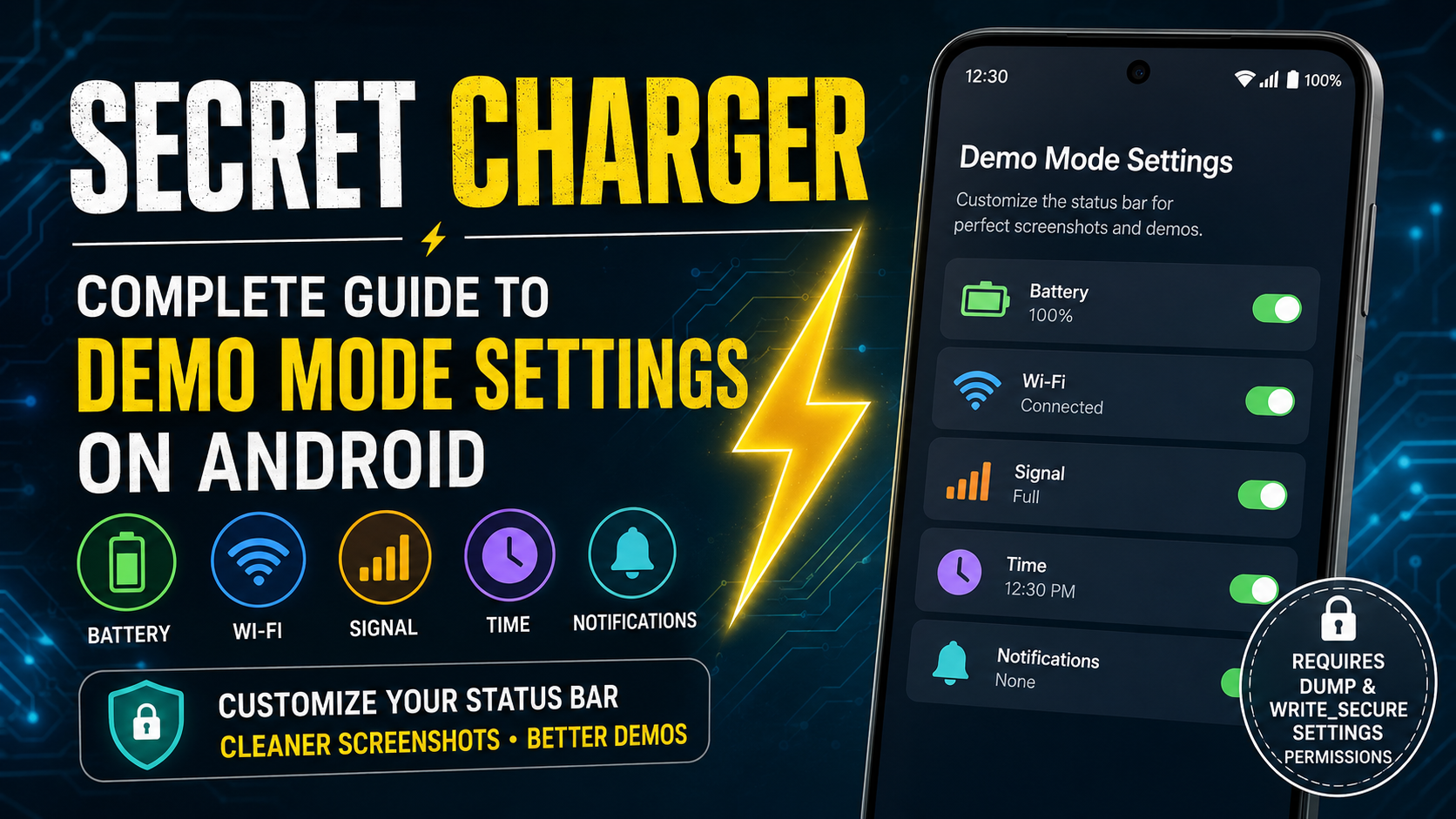
Secret charger is an interesting Android utility concept for users who want more control over the appearance of their device’s system interface. Instead of changing the phone’s hardware or charging performance, the idea behind this tool is connected with Android Demo Mode Settings and the ability to control how selected status-bar information appears on the screen.
Many Android users see icons and information such as the battery percentage, network signal, Wi-Fi status, time, and other system indicators every day. These elements are useful, but they can sometimes make screenshots look inconsistent. They can also distract from demonstrations, tutorials, presentations, app previews, or other screen recordings. This is where Demo Mode functionality can become useful.
The Secret charger page introduces a tool associated with changing the appearance of the Android system UI. Its main purpose is not to physically modify the charger, battery, or charging hardware. Instead, the concept focuses on Android interface customization, particularly the status bar. The original page describes Demo Mode Settings as a way to fine-tune status-bar icons and notes that special permissions may be required for advanced functionality.
This detailed of secret charger guide explains what the tool is about, how Demo Mode works, what users can expect, why permissions matter, how to prepare an Android device, and how to use system-interface customization responsibly.
What Is Secret Charger?
The term Secret charger can sound as though it refers to a hidden charging feature, a fast-charging trick, or a special battery technology. However, the page associated with this name is actually focused on Android system-interface customization through Demo Mode Settings.
Demo Mode is designed to provide a controlled appearance for certain Android status-bar elements. This can be useful when someone wants to create clean screenshots, demonstrations, tutorials, app previews, or other visual material without constantly changing the real status of the device.
For example, a phone might normally show different network conditions, battery levels, notifications, or connectivity icons depending on what is happening at that moment. A controlled interface can make screenshots look more consistent.
The Secret charger concept is therefore better understood as an Android customization topic rather than a physical charging technology.
Why Android Demo Mode Matters
Android devices constantly update the information shown in the status bar. When the battery changes, the battery indicator changes. When a phone connects or disconnects from Wi-Fi, the Wi-Fi icon can change. Incoming notifications can also add additional icons.
For normal daily use, these changes are helpful. However, they are not always ideal for screenshots.
Imagine creating an Android tutorial. One screenshot might show a nearly empty battery, while another shows a full battery. A third screenshot could contain several notification icons. The screenshots may look unrelated even though they were created as part of the same tutorial.
Demo Mode can provide a more controlled visual environment.
This makes the technology particularly interesting for:
- App tutorials
- Android demonstrations
- Technical documentation
- Screen recordings
- Educational guides
- UI presentations
- App screenshots
- Design testing
- Device-interface demonstrations
The Secret charger article can therefore appeal to readers searching for information about Android status-bar control and Demo Mode functionality.
Main Purpose of Secret Charger
The main purpose of secret charger is to help users understand how Android’s system UI can be presented in a controlled way.
The original page specifically describes the ability to take more consistent screenshots by changing aspects of the device’s system UI. It also identifies Demo Mode Settings as the relevant functionality.
Instead of treating this as a mysterious hidden charging trick, users should think about it as a system-interface customization method.
The most useful applications include creating cleaner visual examples and controlling the appearance of status-bar information.
Cleaner Screenshots
Screenshots are one of the most common reasons people want a controlled status bar. A screenshot containing random notifications, inconsistent battery information, or changing network indicators can look less professional.
A controlled interface can help create a cleaner visual presentation.
Better Tutorials
Technology tutorials often contain many screenshots. If every screenshot displays different system information, readers can become distracted.
A consistent status bar helps the main instructions remain the focus.
App Demonstrations
Developers, writers, and technology enthusiasts may want to demonstrate how an application works without unnecessary status information covering the top of the screen.
Demo Mode can help create a more predictable presentation.
Understanding Android Demo Mode
Android Demo Mode is associated with controlling the visual presentation of certain system status information.
The exact behavior can vary depending on the Android version, manufacturer, device configuration, and permissions available on the device. Therefore, users should not assume that every option will work identically on every Android phone.
In general, Demo Mode can be useful when a user needs a predictable status bar for visual demonstrations.
The goal is not necessarily to permanently change the Android operating system. Instead, the purpose is to provide a controlled display state.
This distinction is important because many users confuse interface customization with permanent system modification.
What Can Be Customized?
The exact options depend on the device and Android environment, but Demo Mode functionality may relate to several status-bar elements.
These can include information such as:
- Time
- Battery indicator
- Battery percentage
- Network indicators
- Wi-Fi appearance
- Signal information
- Connectivity icons
- Other system UI indicators
The available controls are not guaranteed to be identical across all phones.
A newer Android version may behave differently from an older version. Manufacturer-specific software can also change how system UI components operate.
Therefore, the Secret charger guide should be viewed as a general explanation rather than a promise that every feature will be available on every device.
Secret Charger and Screenshot Creation
One of the most practical reasons of secret charger to explore this type of Android functionality is screenshot creation.
A screenshot captures exactly what is visible on the screen at a particular moment. That includes the system status bar.
Suppose you are preparing a tutorial containing ten screenshots. If every screenshot has a different battery level or different network indicator, the tutorial may look inconsistent.
A controlled status bar can make those screenshots more visually uniform.
This is especially useful for:
- Blog tutorials
- App guides
- Educational documents
- Software documentation
- Product demonstrations
- UI mockups
- Technical articles
The Secret charger topic can therefore be useful to anyone who regularly creates Android screenshots.
Permissions Explained
One of the most important points from the original page is that advanced functionality may require special Android permissions. The page specifically mentions DUMP and WRITE_SECURE_SETTINGS permissions.
These are not ordinary permissions that users should casually grant to every application.
Android uses permissions to protect system-level functionality. Some permissions provide access to areas of the operating system that normal applications cannot freely modify.
DUMP Permission
The DUMP permission is associated with access to certain system diagnostic and debugging information. It is more powerful than the permissions normally required by everyday applications.
Users should understand what an application is requesting before granting advanced access.
WRITE_SECURE_SETTINGS
WRITE_SECURE_SETTINGS is another powerful permission. It allows applications or tools with appropriate authorization to modify certain secure Android settings.
This permission is intentionally restricted because unrestricted access could allow an application to modify sensitive system configuration.
For that reason, users should not assume that granting this permission is harmless.
Why Special Permissions Are Important
Permissions are one of the most important parts of understanding the Secret charger concept.
An application that only displays information normally needs limited access. An application that attempts to modify system-level behavior may require substantially greater privileges.
Before enabling advanced permissions, consider:
- Why does the application need the permission?
- Is the application from a source you trust?
- Does the requested permission match the application’s purpose?
- Can the permission be removed later?
- Do you understand what the permission allows?
Taking a few minutes to understand permissions can prevent unnecessary security and privacy problems.
How Secret Charger Works in Practice
The general workflow is straightforward.
First, the user installs or opens the relevant Demo Mode utility. The application then provides controls related to the Android status bar.
Depending on the device and software version, the user may need to provide additional authorization before system-level controls become available.
After the necessary setup, the user can configure the available Demo Mode options.
The final result is a more controlled status-bar appearance.
The process can be summarized as:
Install → Review permissions → Enable required access → Configure Demo Mode → Check status bar → Create screenshots or demonstrations
The exact interface may vary, so users should follow the instructions displayed by their Android device and the application itself.
Step-by-Step Setup Guide
Step 1: Prepare Your Android Device
Before starting, make sure the phone has enough battery and that important personal information is backed up if you are going to experiment with advanced system settings.
It is always better to test system customization carefully rather than changing multiple settings at the same time.
Step 2: Open the Demo Mode Utility
Launch the relevant application and review the available features.
Do not immediately grant every permission requested.
Read the permission explanation first.
Step 3: Review Required Permissions
If the application requires special access, determine why.
The original Secret charger page notes that DUMP and WRITE_SECURE_SETTINGS permissions may be necessary for its Demo Mode functionality.
These permissions are powerful, so users should only enable them when they understand the purpose.
Step 4: Configure the Status Bar
After the required access has been provided, look through the available Demo Mode controls.
The available options can differ according to the device.
Choose only the settings you actually need.
Step 5: Check the Result
Return to the main screen and examine the status bar.
If the appearance does not change as expected, check whether the device supports the requested functionality and whether the necessary authorization was completed correctly.
Step 6: Create Your Screenshot
Once the status bar looks appropriate, capture the screenshot.
You can repeat the process for other screenshots if you are preparing a tutorial or visual guide.
Is Secret Charger a Real Charging Tool?
This is an important clarification.
Based on the original page, Secret charger is not presented as a hardware charger, charging cable, battery booster, or fast-charging technology. The page instead discusses Demo Mode and Android system UI customization.
Secret Charger can therefore be misleading if someone expects a physical charging function.
Readers searching for this term should understand that the relevant topic is Android interface customization.
It does not mean that an application can magically increase the physical charging speed of a smartphone.
Charging speed depends on factors such as the phone’s hardware, charger, cable, battery-management system, temperature, and supported charging standards.
Benefits of Using Demo Mode
There are several reasons someone might want this functionality.
1. Consistent Visuals
A controlled status bar can make screenshots appear more consistent.
2. Professional Documentation
Tutorial writers can create cleaner technical documentation.
3. Easier Demonstrations
Presenters can reduce visual distractions when demonstrating Android features.
4. Better App Screenshots
Developers and publishers can create screenshots that focus more clearly on the application interface.
5. Controlled Testing
Technical users can experiment with how system information is displayed.
6. Cleaner Tutorials
Readers can concentrate on the important part of a tutorial instead of unrelated notifications and changing status icons.
Limitations to Keep in Mind
No Android customization tool works identically on every phone.
There are several possible limitations.
Android Version Differences
Different Android versions can implement system UI functionality differently.
Manufacturer Differences
Samsung, Xiaomi, Google Pixel, OnePlus, Oppo, Vivo, and other manufacturers may customize Android differently.
Permission Restrictions
Some devices may prevent users from granting certain advanced permissions through normal settings.
Temporary Behavior
Some Demo Mode changes may only affect the current interface state and may not permanently modify the device.
Feature Availability
An option shown in documentation may not be available on every device.
For these reasons, users should treat the Secret charger guide as a general reference and verify how their own Android device behaves.
Secret Charger for Android Beginners
Beginners should approach advanced Android customization carefully.
You do not need to understand every technical detail before using ordinary applications, but system-level permissions deserve additional attention.
If you are new to Android customization, start with simple changes.
Learn what the status bar does.
Understand what Demo Mode means.
Review every permission.
Change one setting at a time.
Then test the result.
This gradual approach makes troubleshooting easier.
Common Problems and Solutions
Demo Mode Does Not Change Anything
If nothing happens after changing a setting, check whether the required permissions were granted.
Also verify whether your Android version supports the selected feature.
Special Permission Cannot Be Granted
Some Android devices restrict system-level permissions. This can happen because of security policies, manufacturer software, or Android version differences.
If a permission cannot be granted normally, do not attempt risky modifications without understanding the consequences.
Status Bar Returns to Normal
Some changes may not remain active after restarting the phone or leaving the relevant mode.
This does not necessarily mean the application is broken. Temporary interface states can behave differently from permanent settings.
Some Icons Are Missing
If an icon does not appear as expected, check the selected Demo Mode settings and device compatibility.
Application Behaves Differently on Another Phone
This is normal for Android. Different manufacturers and software versions can produce different results.
Secret Charger Safety Tips
Security should always come before customization.
When using an Android utility that requests advanced permissions, follow these basic principles.
Only grant permissions you understand.
A permission request should have a clear relationship to the application’s purpose.
Keep important data backed up.
Before experimenting with advanced system settings, make sure important photos, documents, contacts, and other data are protected.
Avoid unnecessary system modifications.
If you only need a clean screenshot, use the simplest available method.
Review permissions periodically.
If an application no longer needs special access, consider removing that access when possible.
Do not assume every online instruction is safe.
Android system modifications can have different consequences depending on the device.
Secret Charger vs Normal Android Status Bar
The standard Android status bar reflects the phone’s current state.
If the battery is 63%, the battery indicator reflects that state. If notifications arrive, they may appear in the status bar. If network conditions change, related indicators can change as well.
Demo Mode creates a more controlled presentation.
That makes the two approaches different:
| Standard Status Bar | Demo Mode |
|---|---|
| Reflects normal device activity | Designed for controlled presentation |
| Updates dynamically | Can provide a predictable appearance |
| Useful for everyday use | Useful for screenshots and demonstrations |
| Shows real-time information | Can simulate selected visual states |
| Requires normal Android operation | May require advanced permissions |
The goal is not necessarily to replace the standard status bar permanently. Instead, Demo Mode is useful when a controlled interface is desirable.
Who Should Use Secret Charger?
The Secret charger topic may be especially interesting for people who frequently work with Android screenshots and demonstrations.
Potential users include:
- Android tutorial writers
- Technology bloggers
- App developers
- UI designers
- Teachers
- Students
- Technical reviewers
- Content creators
- Android enthusiasts
For ordinary smartphone users who only want to charge their phone, however, this is not a charging upgrade.
Who May Not Need It?
If you rarely take screenshots and have no reason to customize Android’s system UI, you may not need Demo Mode functionality.
The standard Android interface is perfectly suitable for everyday activities such as:
- Calling
- Messaging
- Browsing
- Watching videos
- Taking photos
- Using applications
- Charging the device
Advanced interface controls are most useful when you have a specific reason for using them.
Tips for Better Android Screenshots
If your main goal is screenshot creation, consider these additional practices.
Keep Notifications Minimal
Unnecessary notifications can make screenshots look cluttered.
Use Consistent Orientation
If a tutorial uses landscape screenshots, keep the same orientation throughout the article.
Maintain Similar Resolution
Consistent image dimensions make a guide easier to read.
Focus on the Important Interface
Avoid unnecessary visual distractions.
Use Clear Annotations
When explaining a feature, highlight the relevant button or menu without covering important information.
Keep Screenshots Authentic
Do not use screenshots that could mislead readers about what an application actually does.
These principles can make your Android tutorials more useful and professional.
Frequently Asked Questions
What is Secret Charger?
Secret charger is the name used on the referenced page for an Android-related utility topic focused on Demo Mode and system UI customization rather than a physical charging device.
Does Secret Charger increase charging speed?
No. The referenced content does not describe a technology that increases physical charging speed. Its focus is Android Demo Mode and status-bar customization.
What is Demo Mode?
Demo Mode is an Android interface feature that can help create a controlled appearance for selected system status information.
Why would I use Demo Mode?
It can be useful for screenshots, tutorials, presentations, demonstrations, and other situations where a consistent status bar is desirable.
Does every Android phone support the same Demo Mode features?
No. Android versions, manufacturers, device configurations, and permission restrictions can affect available functionality.
Does Secret Charger require special permissions?
The original page states that its Demo Mode functionality requires DUMP and WRITE_SECURE_SETTINGS permissions.
Are advanced Android permissions safe?
They should be treated carefully. Users should understand what a permission allows before granting it.
Can Demo Mode permanently damage a phone?
Simply using an interface feature does not mean physical damage will occur, but advanced system modifications should always be approached carefully. Users should avoid instructions they do not understand.
Can I use Demo Mode for screenshots?
Yes. Controlled system UI presentation is one of the main reasons Demo Mode can be useful.
Is Secret Charger a physical charger?
No. The referenced article is about Android software and Demo Mode rather than a physical charging accessory.
Final Thoughts
The name Secret charger may initially suggest a hidden charging technique, but the content behind the page is actually centered on Android Demo Mode and system UI customization. The main idea is to give users more control over the visual presentation of selected status-bar information.
This can be especially helpful when creating screenshots, tutorials, technical documentation, app demonstrations, and other Android-focused content.
The original page highlights Demo Mode Settings and explains that advanced functionality may require DUMP and WRITE_SECURE_SETTINGS permissions. Because these permissions can provide deeper system access, users should always understand what they are granting before enabling them.
The most important point is to use the feature for a clear purpose. If your goal is to create cleaner screenshots or a consistent Android demonstration, Demo Mode can be useful. If your goal is faster charging, however, this is not the type of tool you need.
Android customization is most effective when it is approached carefully. Understand the available options, check compatibility with your device, review permissions, and avoid unnecessary system changes.
With the right approach, Secret charger can be understood as a useful Android customization topic rather than a mysterious charging shortcut. Its real value comes from controlling the visual presentation of the Android interface and making screenshots or demonstrations cleaner, more consistent, and easier to understand.