

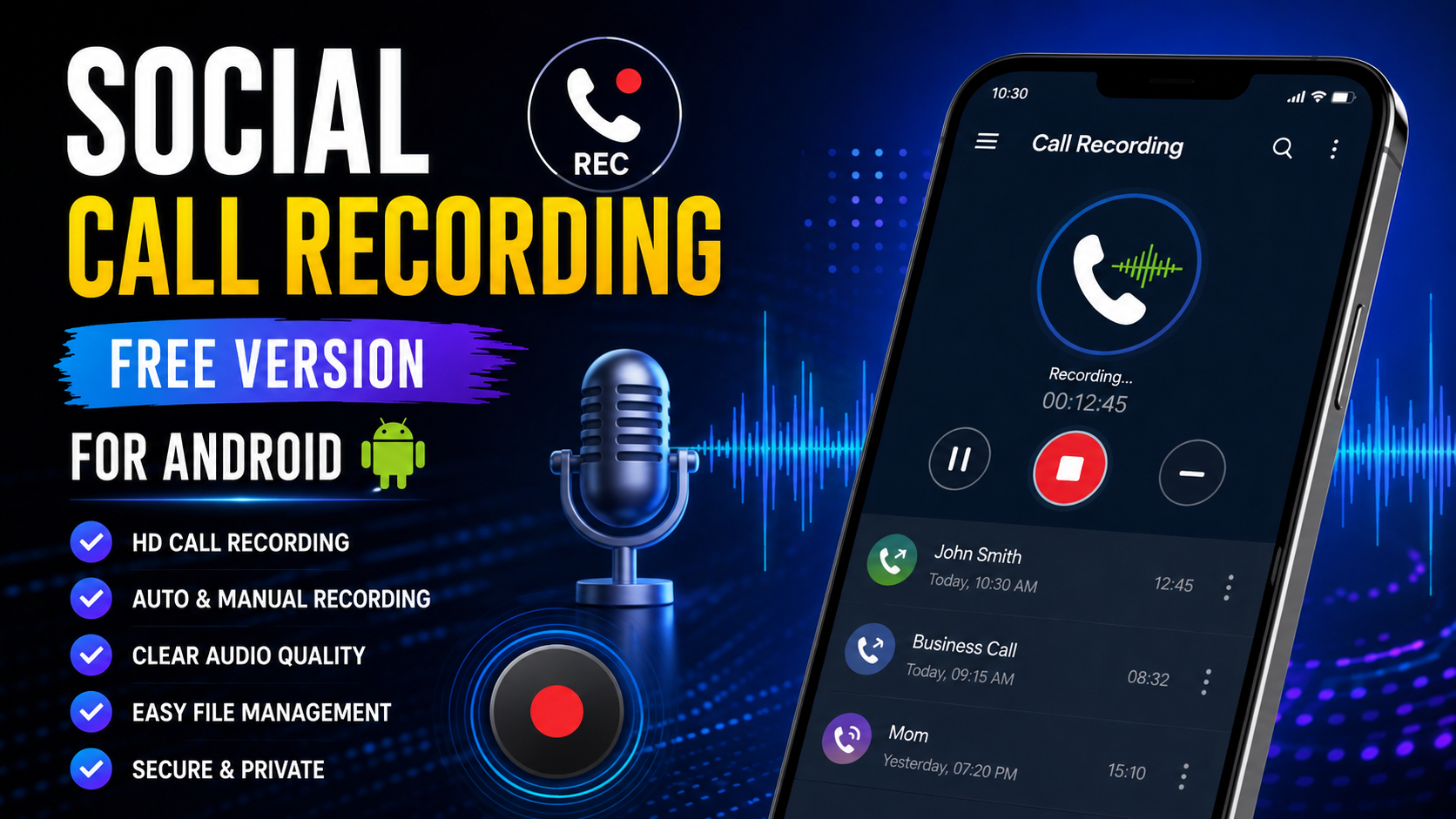
Social Call Recording is becoming an important feature for Android users who want a simple way to manage and save important phone conversations. Whether you need to keep a record of an important discussion, review details from a conversation later, or organize your recorded calls, having a reliable call recording solution can make everyday communication easier.
Modern Android smartphones provide many communication features, but call recording can work differently depending on the phone model, Android version, region, permissions, and device settings. This means users often need a straightforward guide that explains what Social Call Recording is, how it works, what features to expect, and how to use it responsibly.
This complete guide covers Social Call Recording for Android, including its main features, installation considerations, recording settings, audio management, privacy, troubleshooting, and frequently asked questions.
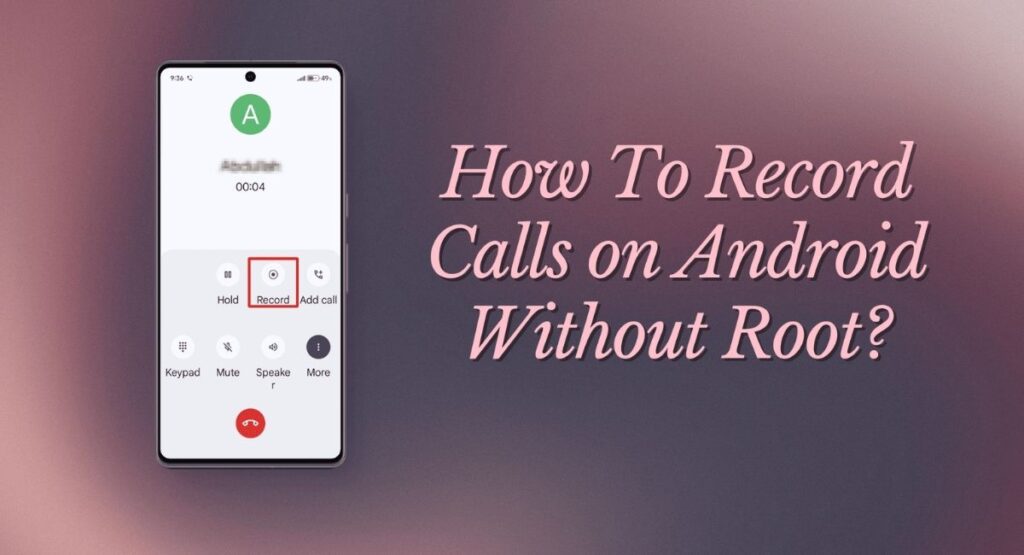
What Is Social Call Recording?
Social Call Recording refers to a call recording solution designed to help Android users record and manage phone conversations. Instead of relying on memory to remember every part of an important conversation, users can keep an audio record when recording is supported by their device and permitted by applicable laws.
The main purpose of Social Call Recording is convenience. A recorded conversation can be useful when you need to remember instructions, review important information, confirm details, or keep personal records of permitted conversations.
The exact recording experience can vary from one Android device to another. Some devices provide native recording functionality, while others may require additional configuration. Android permissions, microphone access, phone settings, and manufacturer restrictions can all affect recording performance.
For this reason, users should always check how call recording works on their particular device before expecting identical results across different phones.
Why Use Social Call Recording on Android?
Phone conversations can contain information that is difficult to remember accurately. Addresses, instructions, appointment details, work-related information, and personal notes may all be discussed during a call.
Social Call Recording can provide a convenient way to review that information later, provided that recording the conversation is lawful and appropriate.
Some common reasons users may want a call recording feature include:
- Remembering important conversation details
- Reviewing instructions after a phone call
- Keeping personal records
- Organizing permitted recordings
- Avoiding the need to write notes during a conversation
- Listening to important information again
- Maintaining an audio reference for personal use
Recording should never be used to invade someone’s privacy or secretly capture conversations where doing so is prohibited. Always consider applicable laws and obtain consent when required.
Social Call Recording Features
A useful recording solution should offer more than simply pressing a record button. Users generally want an easy interface, dependable recording controls, organized files, and straightforward playback.
Here are some features commonly associated with Social Call Recording.
1. Simple Recording Controls
One of the most important features is an easy recording process. Users should be able to understand when recording is active without navigating through complicated menus.
Clear controls make it easier to start, stop, or manage recordings when supported by the device.
2. Automatic Recording Options
Depending on device compatibility and available functionality, automatic recording can reduce the need to manually start every recording.
Automatic features can be useful for users who frequently need to save permitted conversations. However, automatic recording should be configured carefully because not every conversation should be recorded.
3. Manual Recording
Manual recording provides greater control. Instead of recording every call, users can decide when a particular conversation should be saved.
This can help reduce unnecessary audio files and make it easier to manage storage.
4. Audio File Management
Recorded conversations can accumulate quickly. Good file management helps users identify and organize important recordings.
Useful management options may include viewing recording information, renaming files, deleting unwanted recordings, and organizing important audio files.
5. Playback Support
A recording is only useful if it can be played back easily. Social Call Recording should provide a straightforward way to listen to saved audio when supported by the device.
Playback can be particularly useful when reviewing information from a previous conversation.
6. Storage Management
Audio recordings require storage space. Longer conversations can create larger files, especially when saved in higher-quality formats.
Users should regularly review stored recordings and remove files they no longer need.
7. Notification and Recording Indicators
A clear recording indicator can help users understand whether recording is currently active.
This is especially important for privacy and transparency. Users should never assume that recording is active without checking the recording status.
How to Use Social Call Recording on Android
Using Social Call Recording can be straightforward when the Android device supports the required recording functionality.
Before starting, make sure the phone has enough available storage and that the required permissions are enabled.
Step 1: Check Your Android Device
First, check your phone’s Android version and call application settings. Recording capabilities can differ between Android versions and manufacturers.
If your device does not support the required recording functionality, some features may not work as expected.
Step 2: Review Permissions
Android applications may request permissions related to the microphone, phone calls, notifications, or storage.
Only grant permissions that are necessary for the feature you want to use. Review Android’s permission controls regularly so you understand what access has been granted.
Step 3: Configure Recording Settings
If recording options are available, review the settings before making a call.
Look for options related to manual recording, automatic recording, storage, notifications, or audio quality.
Step 4: Make a Test Call
A short test call can help determine whether Social Call Recording works correctly on your device.
After the test, check whether the recording was saved properly and whether the audio can be played clearly.
Step 5: Check the Saved Recording
After recording a permitted conversation, locate the saved file and play it back.
Make sure both sides of the conversation are captured clearly if your device and recording method support two-way recording.
Step 6: Organize Your Recordings
Remove recordings you no longer need and keep important files organized.
Good organization prevents your storage from becoming filled with unnecessary audio files.
Social Call Recording and Android Compatibility
Compatibility is one of the most important things to understand before using any call recording feature.
Android is available across a wide range of smartphones, and manufacturers can modify how calls, microphones, permissions, and system applications operate.
As a result, Social Call Recording may behave differently on different devices.
Potential compatibility factors include:
- Android version
- Smartphone manufacturer
- Device model
- Default phone application
- Region
- Carrier restrictions
- Permission settings
- Microphone access
- Privacy restrictions
- Available storage
A feature that works perfectly on one Android smartphone may behave differently on another.
Therefore, users should test recording functionality before relying on it for important information.
Social Call Recording Audio Quality
Audio quality is another important consideration. A recording may technically be successful but still difficult to understand if the audio is unclear.
Several factors can affect recording quality.
Microphone Performance
The phone’s microphone can influence the quality of recorded audio. Dirt, physical damage, or hardware limitations can cause poor sound.
Network Conditions
Although recording primarily concerns the phone’s audio system, call quality itself can also affect the final recording. A weak connection may create interruptions or unclear speech.
Device Restrictions
Some Android devices restrict how applications access call audio. These restrictions can result in incomplete recordings or one-sided audio.
Background Activity
Battery optimization and background restrictions may interfere with certain applications. If recording stops unexpectedly, checking Android’s battery and background settings may help.
How to Improve Social Call Recording Quality
If your recordings sound unclear, several basic steps can help.
First, make sure the phone’s microphone is unobstructed. Avoid covering microphone openings while talking.
Next, test recording in a quiet environment. Background noise can make speech harder to understand.
Keep your phone’s software updated when appropriate, because system updates may improve compatibility or fix bugs.
Also check whether battery-saving features are interfering with the recording process.
Finally, make a short test recording before an important conversation. Testing in advance is much better than discovering afterward that the recording did not work.
Managing Social Call Recording Files
Recording calls regularly can produce a large collection of audio files. Proper file management is therefore important.
Start by deleting recordings that are no longer necessary. Keeping every recording indefinitely can consume storage and create privacy risks.
Important recordings should be clearly identified so they are easy to locate later.
You should also avoid sharing private recordings unnecessarily. Audio files can contain personal information, phone numbers, addresses, financial details, or other sensitive information.
Keeping recordings private and secure is an important part of responsible recording.
Privacy and Social Call Recording
Privacy should always be considered before recording a phone conversation.
Call recording laws differ depending on location. In some places, everyone involved in a conversation may need to know about or consent to the recording. In other jurisdictions, different rules may apply.
Because laws can change and depend on circumstances, users should verify the rules applicable to their location before recording calls.
Social Call Recording should be used responsibly. Never use recording features to harass, threaten, expose private information, or violate another person’s rights.
When consent is required, obtain it before recording.
Is Social Call Recording Safe?
The safety of a call recording feature depends on how it is configured and how recordings are handled.
Users should pay attention to permissions, storage locations, file sharing, and access to their device.
A few basic safety practices can help:
- Review application permissions
- Use a secure screen lock
- Avoid sharing private recordings unnecessarily
- Delete recordings you no longer need
- Keep important files protected
- Review recording settings regularly
- Obtain consent when required
- Do not record conversations for unlawful purposes
The safest approach is to treat every recording as potentially private information.
Social Call Recording Storage Requirements
Call recordings are audio files, so they require storage space.
The amount of storage required depends on factors such as recording duration, audio quality, and file format.
Short calls usually require relatively little space, but long conversations can accumulate into a substantial amount of storage over time.
If you use Social Call Recording regularly, check your available storage periodically.
When storage becomes limited, remove recordings that are no longer useful.
This also helps keep the recording library organized and easier to search.
Common Social Call Recording Problems
Even when a recording feature is configured correctly, problems can occur.
Recording Does Not Start
If recording does not start, check whether recording functionality is supported by your device.
Review the relevant permissions and settings, then perform a short test.
Only One Side Is Recorded
One-sided audio is a common issue with some Android configurations.
This can happen because of operating-system restrictions, device limitations, microphone access, or the way the phone handles call audio.
Recording Has No Sound
If a saved recording has no audible content, check microphone permissions and audio settings.
A test call can help determine whether the issue affects every recording or only a particular conversation.
Recording Stops Automatically
Battery optimization, background restrictions, system limitations, or insufficient storage can cause recording interruptions.
Check available storage and relevant battery settings if supported by your device.
Audio Quality Is Poor
Move to a quieter environment, keep the microphone unobstructed, and test the phone’s normal audio functionality.
If the issue continues across multiple recordings, the problem may be related to device or system limitations.
Social Call Recording for Everyday Use
For everyday users, the biggest benefit of Social Call Recording is convenience.
People often receive information over the phone that they cannot immediately write down. A permitted recording can provide a way to review that information later.
For example, you may want to remember detailed instructions, revisit an important discussion, or review information discussed during a long conversation.
However, recording should remain selective and responsible. Recording every conversation without considering privacy can create unnecessary risks.
Social Call Recording for Important Conversations
Important conversations often contain details that are easy to forget.
A recording can serve as an audio reference when permitted.
Before relying on a recording, always test the feature on your device. This is particularly important if the information is time-sensitive or cannot easily be recovered.
A short test recording can reveal compatibility issues before they become a problem.
Benefits of Social Call Recording
There are several potential benefits to using a reliable call recording feature.
Better Recall
Listening to a conversation again can help users remember information more accurately.
Convenient Reference
Instead of relying entirely on handwritten notes, users can refer to a saved recording when appropriate.
Easy Review
Important sections of a conversation can be reviewed later.
Better Organization
With proper file management, users can maintain an organized collection of important recordings.
Flexible Use
Manual recording can give users control over which permitted conversations they want to save.
Limitations of Social Call Recording
Despite its benefits, Social Call Recording is not guaranteed to work identically on every Android device.
Operating-system restrictions, manufacturer settings, regional rules, phone applications, and hardware differences can affect functionality.
Some devices may not provide full call-audio access to third-party applications.
For this reason, users should avoid assuming that a recording solution will work exactly the same on every smartphone.
Testing compatibility before important use is always recommended.
Tips for a Better Social Call Recording Experience
For the best experience, follow these practical tips:
- Check your Android version.
- Review recording-related permissions.
- Make a short test recording.
- Keep sufficient storage available.
- Avoid covering the microphone.
- Record only when legally permitted.
- Inform participants when required.
- Keep private recordings secure.
- Delete unnecessary recordings.
- Test recording functionality after major system changes.
These simple steps can prevent many common recording problems.
Social Call Recording and Battery Usage
Recording audio can consume additional battery power, particularly during long conversations.
The effect varies depending on the device, application behavior, system settings, and other background processes.
If battery consumption becomes noticeable, review unnecessary background applications and battery optimization settings.
Keeping the phone adequately charged before long calls can also help avoid interruptions.
Social Call Recording and Privacy Permissions
Permissions are an important part of Android privacy.
Users should understand what access is requested and why it may be needed.
Microphone access, phone-related permissions, notifications, and file access can affect recording functionality.
Never approve permissions blindly. Review them and keep only the access required for the functionality you actually use.
FAQs
What is Social Call Recording?
Social Call Recording is a call recording feature or solution intended to help Android users record and manage permitted phone conversations.
Does Social Call Recording work on every Android phone?
No. Call recording functionality can vary according to Android version, smartphone manufacturer, device model, region, and system restrictions.
Why is my Social Call Recording audio incomplete?
Incomplete audio can result from Android restrictions, device compatibility, microphone permissions, or limitations in how the phone handles call audio.
Can I automatically record calls?
Automatic recording may be available depending on the device and supported functionality. Users should check their phone’s recording settings and ensure that automatic recording is legally permitted.
How much storage do recordings require?
Storage requirements depend mainly on recording duration, audio quality, and file format. Longer recordings require more space.
Why should I test recording before an important call?
A test can reveal compatibility, permission, or audio-quality problems before you depend on the recording for important information.
Is call recording legal?
Call recording laws vary by jurisdiction. In some locations, consent from one or all participants may be required. Always follow the laws applicable to your situation.
How can I keep recordings private?
Use a secure device lock, limit access to recordings, avoid unnecessary sharing, and delete files that you no longer need.
Why does only one person’s voice appear in the recording?
Some Android devices restrict access to call audio, which can result in one-sided recordings. Device and system compatibility are important factors.
Can Social Call Recording use a lot of battery?
Long recording sessions can increase battery usage. The actual effect depends on the device, system, and recording method.
Final Thoughts on Social Call Recording
Social Call Recording can be a useful Android feature for people who need a convenient way to save and review permitted phone conversations. Its value comes from simplicity, accessibility, and the ability to keep important audio information available for later review.
However, the experience depends heavily on the Android device being used. Different manufacturers and Android versions can apply different restrictions to call recording, so compatibility should always be tested before relying on the feature.
Responsible use is equally important. Phone conversations can contain private information, so recordings should be handled carefully. Users should understand local recording requirements, obtain consent whenever necessary, protect saved audio files, and avoid unnecessary sharing.
If you are looking for a practical Android call recording experience, Social Call Recording can be useful when your device supports the required functionality. By checking permissions, testing audio quality, managing storage, and following privacy requirements, you can make the most of the available recording features.
The most important thing is to use Social Call Recording responsibly. A good recording experience is not only about capturing audio; it is also about protecting privacy, managing files properly, and making sure the feature works correctly on your particular Android phone.