

The One UI 7 latest update has attracted a lot of attention from Android users who want a cleaner, smoother, and more modern smartphone experience. Samsung’s official One UI 7 introduced a refreshed interface and new features for supported Galaxy devices, while many Android users are also looking for ways to experience a similar design on phones that do not officially support the update.
This is where a One UI 7 latest update inspired launcher can become useful. The launcher discussed in this guide is designed to give Android phones a visual experience inspired by the modern One UI design. It can change the appearance of the home screen, app drawer, widgets, icons, control center, and edge-access features without requiring users to completely replace their phone.
It is important to understand one thing before continuing: this launcher is not the official Samsung One UI 7 software update. It is a third-party launcher inspired by the One UI 7 design. Samsung officially released One UI 7 for eligible Galaxy devices, while this type of launcher is intended for Android users who want a similar visual experience on compatible phones.
In this complete guide, we will explain the One UI 7 latest update concept, the launcher experience, its main features, customization options, permissions, performance, advantages, limitations, and frequently asked questions.
What Is One UI 7?
One UI 7 is Samsung’s software interface designed for Galaxy smartphones and tablets. The official version brings a redesigned user experience and is based on Android 15. Samsung announced the official rollout of One UI 7 in 2025, highlighting a new interface designed to make interactions with Galaxy devices more natural.
The interest in the One UI 7 latest update is not only related to Samsung Galaxy users. Android users with different smartphone brands may also like the visual style of One UI and want to recreate a similar appearance.
A launcher can help with that.
An Android launcher controls important parts of the phone’s visual interface, including the home screen, app icons, folders, widgets, app drawer, and certain navigation shortcuts. A One UI-inspired launcher uses these capabilities to create an interface that resembles the style associated with Samsung’s software.
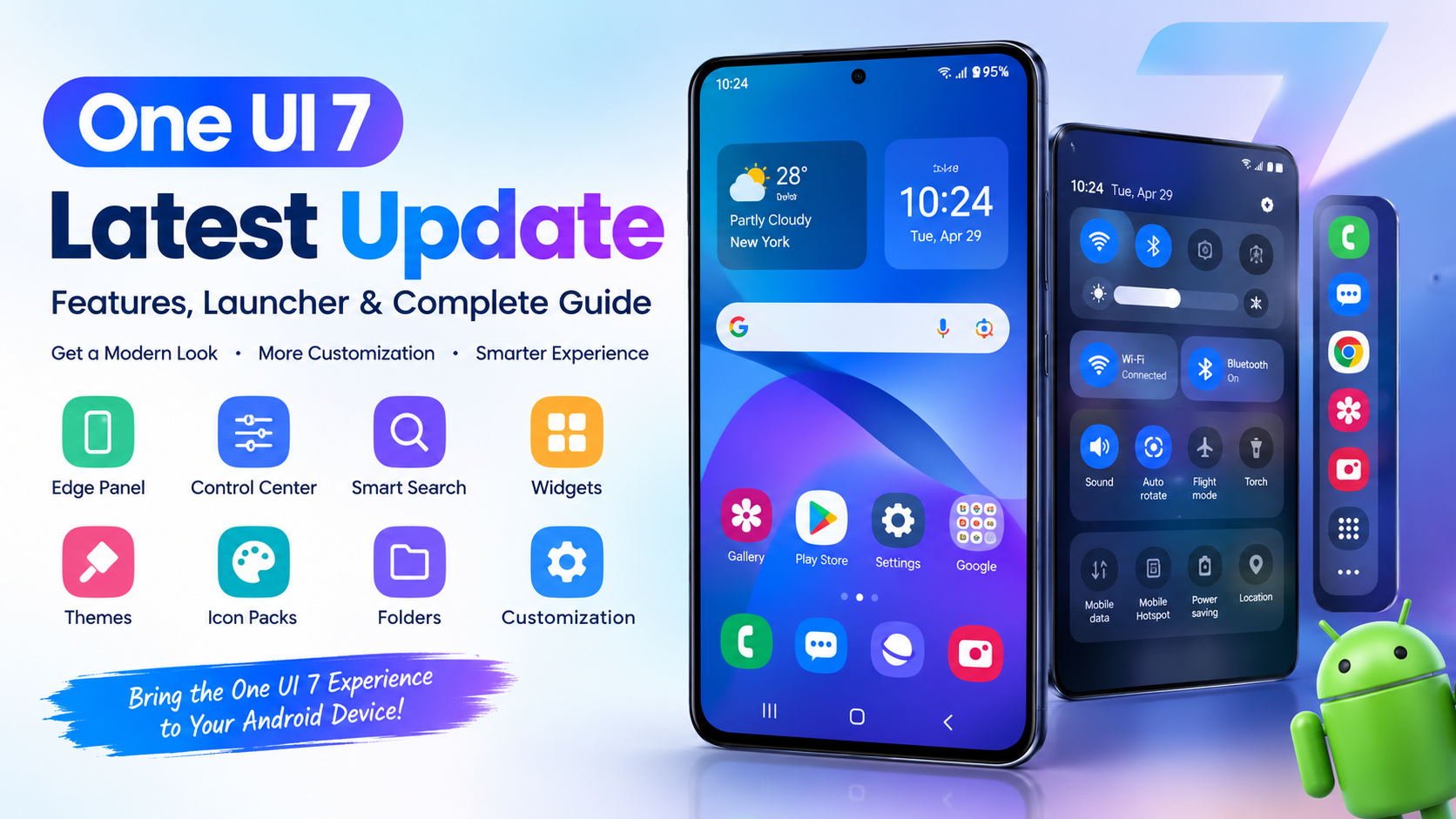
The launcher featured on your website is specifically described as being inspired by One UI 7. It includes features such as an Edge Panel, One UI-style Control Center, smart search, widgets, folders, themes, icon-pack support, and clock customization.
One UI 7 Latest Update and the Inspired Launcher
When people search for the One UI 7 latest update, they may be looking for different things.
Some users want to know whether their Galaxy phone has received the official update. Others want to understand new design changes. Some Android users simply want a similar interface on their current device.
These are different use cases.
The launcher does not install Samsung’s official firmware on your smartphone. Instead, it changes the user interface through Android’s launcher system.
This makes it useful for people who want to experiment with a different appearance without changing the entire operating system.
The idea is simple: install the compatible launcher, configure it as your preferred home application, and customize the available settings according to your preferences.
Main Features of the One UI 7 Inspired Launcher
The biggest reason users may search for the One UI 7 latest update is the visual redesign associated with the newer interface. The inspired launcher attempts to recreate some of that modern appearance through several customization features.
1. One UI 7 Inspired Home Screen
The home screen is the first thing most users notice.
The launcher provides a modern layout inspired by the One UI 7 visual style. Users can organize frequently used applications, change the arrangement of icons, and create a cleaner home-screen experience.
Instead of using the default launcher that comes with your phone, you can use the inspired interface to create a more Samsung-like appearance.
The goal is not to copy every system component but to provide a familiar visual feeling.
2. Edge Panel
One of the useful features highlighted in the original app description is the Edge Panel.
An Edge Panel provides quick access to selected applications, contacts, or tools. Instead of opening the app drawer every time, users can swipe from the edge of the screen and access shortcuts.
This can make frequently used apps easier to reach.
The availability of advanced Edge Panel functionality may depend on the launcher version and whether the feature is included in the free or premium experience.
3. One UI Style Control Center
The launcher also offers a Control Center inspired by the One UI design.
A control center is useful because it places common settings in an easily accessible location. Depending on the launcher implementation, users may be able to access options related to Wi-Fi, brightness, sound, Bluetooth, and other common controls.
This feature is intended to provide a more modern quick-settings experience.
However, users should remember that a third-party launcher does not necessarily have the same system-level access as Samsung’s official software. Some controls may work differently depending on the Android version and device manufacturer.
4. Smart Search
Searching for an application can become inconvenient when a phone contains dozens or hundreds of installed apps.
The launcher includes a smart search feature designed to help users quickly find apps, contacts, and settings.
Instead of manually browsing multiple pages, users can swipe down and search for the item they need.
This makes the interface more practical for people who install many applications.
5. Widget Support
Widgets are another important part of modern Android customization.
The launcher supports widgets designed to match its visual style. Users can place clocks, calendars, weather information, and other compatible widgets on the home screen.
Widgets can make the home screen more informative without requiring users to open individual applications.
A properly organized widget layout can also make the phone feel more personalized.
6. Custom App Drawer
The app drawer is where users can view installed applications.
The One UI-inspired launcher allows users to customize the application layout and folder organization. This can help create a cleaner interface and make applications easier to find.
Users can arrange applications into folders based on categories such as social, work, entertainment, education, tools, and games.
7. Folder Customization
Folders are especially useful for keeping the home screen organized.
Instead of placing every application directly on the home screen, users can create folders and group related apps together.
For example, communication apps can be placed in one folder while productivity applications can be placed in another.
This simple organization can make the phone feel less crowded.
8. Theme Support
The launcher also supports themes and customization options.
Users who enjoy changing their phone’s appearance can experiment with different combinations of wallpapers, icons, widgets, and layouts.
The goal is to provide a modern interface while still allowing users to maintain their own style.
9. Icon Pack Support
Icon packs are another useful customization option.
A compatible icon pack can change the appearance of application icons throughout the home screen and app drawer.
This means users are not limited to the default icons provided by their smartphone manufacturer.
Combining suitable icons with a matching wallpaper and widget can create a consistent visual style.
10. Clock Widget Customization
The launcher also focuses on clock customization.
Users may be able to change the appearance of the clock, including its visual style and background options.
For users who prefer a minimalist home screen, a large customized clock can become the main visual element.
How the One UI 7 Latest Update Experience Looks
The visual experience is one of the most important reasons people search for the One UI 7 latest update.
A modern Android interface should feel simple rather than complicated. The launcher attempts to create this experience through clean layouts, customizable icons, widgets, folders, and quick-access features.
The design can make an older Android phone feel visually different without replacing its hardware.
Of course, the exact appearance depends on the phone, Android version, screen resolution, installed icon packs, launcher settings, and available features.
Can You Get One UI 7 on Any Android Phone?
This is an important question.
The official One UI 7 software is Samsung’s Galaxy software and is distributed to eligible Samsung devices. It cannot simply be installed as a normal launcher on every Android phone.
Samsung’s official rollout covered eligible Galaxy devices, with availability depending on the model and market.
However, an inspired launcher is different.
A launcher can provide a similar visual experience on compatible Android phones without installing Samsung’s operating system.
This means someone using a non-Samsung Android phone may still be able to enjoy a One UI-inspired home screen.
One UI 7 Latest Update vs One UI 7 Inspired Launcher
It is useful to understand the difference.
The official One UI 7 latest update is Samsung system software. It can change system-level elements, settings, notifications, security components, and other parts of the Galaxy experience.
An inspired launcher mainly changes the visual launcher environment.
Here is a simple comparison:
| Feature | Official One UI 7 | Inspired Launcher |
|---|---|---|
| Samsung system software | Yes | No |
| Android system integration | Deep | Limited |
| Home-screen customization | Yes | Yes |
| One UI-inspired design | Yes | Yes |
| Edge-style features | Device dependent | Available in launcher |
| Control Center style | System level | Launcher experience |
| Works on non-Samsung phones | No | Depending on Android compatibility |
| Requires Samsung firmware | Yes | No |
This distinction is important for accurate information and user expectations.
How to Use the One UI 7 Inspired Launcher
Using a launcher is generally straightforward.
Step 1: Install the Launcher
Install the compatible launcher on your Android device from the source provided for the application.
Before installation, make sure the application is compatible with your Android version.
Step 2: Open the Application
After installation, open the launcher.
The application may guide you through its initial setup.
Step 3: Set It as the Default Launcher
Android may ask whether you want to use the launcher as your default home application.
Choose the appropriate option if you want the One UI-inspired interface to appear whenever you return to the home screen.
Step 4: Customize the Home Screen
After activation, begin customizing your home screen.
You can organize your applications, add widgets, create folders, change wallpapers, and adjust the available launcher settings.
Step 5: Configure Edge Features
If the Edge Panel is available on your version, configure your favorite applications and shortcuts.
This can make frequently used functions easier to access.
Step 6: Customize the Control Center
If the launcher provides its own One UI-style Control Center, explore the available settings and shortcuts.
Some functions may require additional permissions or premium access.
Permissions Used by the Launcher
Permissions are an important consideration when installing any Android application.
The original application description states that the launcher may request permissions for features such as accessing images for wallpapers, contacts and calendar information for Edge Screen content, Bluetooth controls, camera access for the flashlight function, settings changes, notification policy controls, and accessibility functionality for features such as double-tap screen locking.
These permissions should be understood before enabling them.
For example, an application that needs to display calendar events may require calendar access. A feature that controls certain system settings may require the appropriate Android permission.
Users should only grant permissions that they understand and that are necessary for the features they want to use.
Is the One UI 7 Inspired Launcher Officially Made by Samsung?
No.
This is one of the most important points in this guide.
The launcher described on the original page clearly states that it is not affiliated with Samsung Electronics. It is a third-party launcher inspired by One UI 7.
Therefore, users should not confuse the launcher with Samsung’s official software.
The name and design inspiration are intended to describe the visual style, not official ownership.
Samsung’s official One UI 7 is its own Galaxy software experience. Samsung announced its official rollout beginning in 2025.
One UI 7 Latest Update Design Benefits
There are several reasons Android users may enjoy a One UI-inspired design.
Cleaner Home Screen
A well-organized interface can make applications easier to find.
Better Personalization
Users can choose wallpapers, icons, widgets, folders, and layouts that match their preferences.
Quick Access
Edge-style shortcuts can reduce the number of taps needed to access commonly used applications.
Modern Appearance
The One UI-inspired visual style can make an older Android phone look newer.
Flexible Organization
Custom folders and app drawers help users manage a large collection of applications.
Performance and Battery Considerations
Performance can vary significantly between Android devices.
A lightweight launcher may run smoothly on many devices, but the actual experience depends on RAM, processor performance, Android version, background applications, animations, widgets, and launcher configuration.
The original launcher description promotes smooth performance and battery efficiency, including use on older devices.
However, users should evaluate performance on their own device rather than assuming identical results across every phone.
If your device becomes slower after installing a launcher, try reducing animations, removing unnecessary widgets, and disabling features you do not use.
Free and Premium Features
The original application description indicates that the launcher has premium functionality.
Premium access can unlock features such as removing advertisements, enabling Edge Panel and Control Center functionality, accessing additional themes, and using advanced customization options.
The exact availability of these features can change as the application receives updates.
Users should always check the current application information before making a purchase.
Advantages of the One UI 7 Inspired Launcher
There are several potential benefits.
Modern interface: The design provides a fresh appearance for Android devices.
Customization: Users can modify icons, widgets, folders, wallpapers, and themes.
Edge access: Compatible versions provide quick access to selected apps and tools.
Smart search: Finding applications can be easier.
Widget support: Users can create informative home screens.
No need to replace the phone: A launcher can change the interface without purchasing a new device.
Limitations You Should Know
A launcher cannot completely reproduce Samsung’s official software.
Some system-level features require Samsung hardware or Samsung’s software framework. A third-party launcher can imitate the appearance of certain components, but it cannot transform another Android phone into a Galaxy device.
Some launcher features may also require additional permissions.
Compatibility can vary according to Android version and manufacturer.
Premium features may require payment.
These limitations should be considered before installation.
Who Should Try the One UI 7 Inspired Launcher?
The launcher may be useful for Android users who:
- Like Samsung’s One UI design
- Want a modern home screen
- Enjoy Android customization
- Want Edge-style shortcuts
- Prefer customizable widgets
- Want alternative icon layouts
- Have an older phone and want a refreshed interface
- Want to experiment with a Galaxy-inspired design
It may not be necessary for someone who is already satisfied with their phone’s default launcher.
One UI 7 Latest Update: Common Problems
Although launchers are generally easy to use, users may occasionally encounter problems.
Launcher Does Not Become Default
Open Android’s default-app settings and select the installed launcher as the preferred home application.
Edge Panel Does Not Work
Check whether the required permission is enabled and whether the feature is included in your version.
Widgets Are Missing
Make sure the widget is compatible with your Android version and launcher.
Performance Feels Slow
Try removing unnecessary widgets, reducing animations, and restarting the device.
Control Center Does Not Respond
Check the required permissions and launcher settings.
Some Features Require Premium
Some advanced options may only be available after upgrading to the premium version.
Is It Safe to Use a Third-Party Launcher?
Safety depends on where the application comes from, its permissions, its developer, and how it is maintained.
Users should download applications from trustworthy sources and review permissions carefully.
Avoid granting unnecessary access.
If an application requests permissions unrelated to its advertised features, users should investigate before continuing.
It is also good practice to keep Android updated and remove applications that are no longer trusted or needed.
Tips for Getting the Best One UI 7 Style
You can improve the overall experience by keeping the design simple.
Start with a clean wallpaper.
Use a small number of widgets.
Group similar applications into folders.
Choose an icon pack that matches the overall design.
Avoid filling every part of the screen with shortcuts.
Use the Edge Panel for applications you access frequently.
Customize the clock to match the rest of your home screen.
These small changes can create a much cleaner and more consistent interface.
One UI 7 Latest Update for Older Android Phones
One interesting use case is older Android phones.
A new launcher cannot upgrade the Android operating system itself, but it can change the visual interface.
This means an older phone may receive a visual refresh even if it cannot officially receive Samsung’s One UI software.
The difference should be clear: the launcher changes the appearance, while an official system update changes the underlying software.
That distinction prevents confusion when searching for the One UI 7 latest update.
Why Users Search for One UI 7 Latest Update
Search interest around the One UI 7 latest update comes from several areas.
People want to know what has changed.
Galaxy users want to know whether their phone is eligible.
Android users want to experience the design.
Some users want new customization features.
Others are simply interested in the latest smartphone interface trends.
Because these search intents are different, users should first determine whether they are looking for an official Samsung software update or a third-party launcher.
See Also: https://ayaanletech.org/all-deleted-messages/
FAQs
What is the One UI 7 latest update?
The official One UI 7 update is Samsung’s software experience based on Android 15 for eligible Galaxy devices. Samsung began its official rollout in 2025.
Is the One UI 7 inspired launcher official Samsung software?
No. The launcher described in this article is a third-party application inspired by One UI 7 and is not affiliated with Samsung Electronics.
Can I use a One UI 7 style launcher on Android?
Yes, if your Android phone is compatible with the launcher. A launcher can provide a One UI-inspired appearance without installing Samsung’s operating system.
Does the launcher change Android itself?
No. A launcher mainly changes the home screen, app drawer, icons, folders, widgets, and related interface elements. It does not turn another Android phone into a Samsung Galaxy device.
Does the launcher support Edge Panel features?
The launcher described on the original page includes an Edge Panel feature for quick access to apps, contacts, and tools. Some advanced functionality may require premium access.
Does it have a One UI-style Control Center?
Yes. The original app description includes a Control Center inspired by the One UI 7 design, with quick access to common controls.
Can I customize the icons?
Yes. The launcher supports icon packs and other customization options, allowing users to change the visual appearance of their home screen.
Can I add widgets?
Yes. Widget support is one of the features described for the launcher. Users can customize their home screen with compatible clock, calendar, weather, and other widgets.
Does the launcher work on older phones?
The original description states that the launcher is optimized for smooth performance and can work on older devices, but actual performance depends on the phone’s Android version and hardware.
Is One UI 7 the same as an Android launcher?
No. One UI 7 is Samsung’s system software experience, while an Android launcher is an application that changes the visual home-screen environment.
Should I install the official One UI 7 update or a launcher?
If you own an eligible Samsung Galaxy device, the official software update is the proper way to receive Samsung’s One UI features. If you use another compatible Android phone and simply want a similar visual style, an inspired launcher may be more appropriate.
Does the launcher require permissions?
Some features can require permissions. The original description mentions permissions related to images, contacts, calendar, Bluetooth, camera, settings, notification policy, and accessibility functionality.
Can a launcher give my phone every One UI 7 feature?
No. A third-party launcher can reproduce certain visual and interaction elements, but Samsung’s system-level features require Samsung’s software and supported hardware.
Is the One UI 7 latest update still relevant?
Yes. One UI 7 remains an important reference for users researching Samsung’s Android 15-era interface, while newer Galaxy software versions may now be available depending on the device and region.
What is the main benefit of a One UI 7-inspired launcher?
The main benefit is customization. Users can give their Android phone a modern One UI-inspired appearance while retaining their existing device and Android system.
Final Thoughts
The One UI 7 latest update represents an important change in Samsung’s Galaxy software experience, while the launcher discussed in this guide offers Android users a way to enjoy a similar visual style without installing Samsung’s official operating system.
The inspired launcher focuses on customization, modern design, Edge Panel functionality, a One UI-style Control Center, smart search, widgets, folders, themes, icon packs, and clock customization. The original app description also emphasizes lightweight performance and customization options.
However, users should remember that an inspired launcher is not the same as official Samsung software. Samsung’s One UI 7 is a system-level Galaxy experience, while the launcher primarily changes the appearance and interaction of the Android home-screen environment. Samsung officially announced the One UI 7 rollout in 2025.
If your goal is to make a compatible Android phone look more modern and organized, a One UI 7-inspired launcher can be an interesting option. Before installing it, check compatibility, review permissions, understand premium features, and use a trustworthy source.
With the right configuration, you can create a clean, modern, and personalized Android home screen inspired by the design language many users associate with One UI 7.