

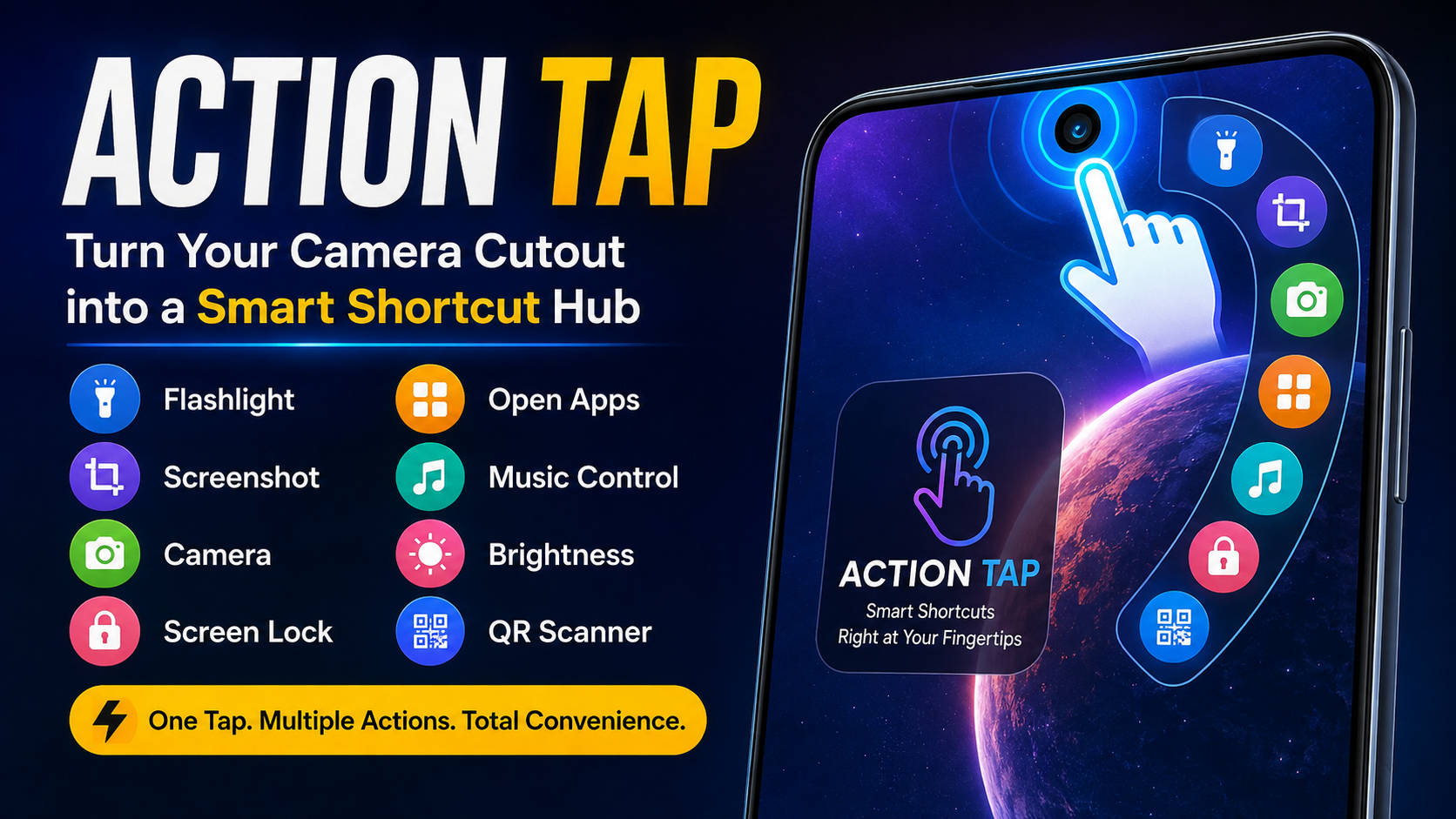
Smartphones are becoming more powerful every year, but many everyday actions still require several taps. Opening the flashlight, taking a screenshot, launching the camera, locking the screen, changing brightness, or switching between applications can sometimes feel unnecessarily complicated. Action Tap is designed to make these common tasks faster by turning the area around the front-camera cutout or notch into a convenient shortcut control.
The idea behind Action Tap is simple: instead of navigating through menus every time you want to perform a common action, you can configure a shortcut and activate it using gestures around the camera cutout. Depending on the selected configuration and supported device features, users can assign actions such as opening an application, controlling music, taking screenshots, activating the flashlight, opening the camera, changing screen rotation, or accessing other useful controls.
This makes Action Tap particularly interesting for Android users who want a more convenient way to interact with their phones. Rather than replacing the normal Android interface, the application adds another layer of quick access that can make everyday smartphone use more efficient.
What Is Action Tap?
Action Tap is an Android utility focused on quick shortcuts and gesture-based interaction. Its main concept is to use the front-camera hole, notch, or surrounding screen area as an interactive shortcut zone.
Once configured, users can associate different gestures with different actions. For example, a single interaction might be assigned to the flashlight, while another gesture could launch the camera or open a frequently used application.
The concept is useful because the camera cutout is already located in a convenient position on many modern Android smartphones. Instead of treating that area only as part of the display design, Action Tap uses it as an interaction point.
The available behavior can depend on the Android version, device design, screen configuration, permissions, and the application’s current capabilities. Therefore, users should always check which functions are available on their particular device before expecting every feature to work identically.
Why Action Tap Is Useful
Modern smartphones offer hundreds of functions, but accessing them is not always quick. A simple task such as turning on a flashlight may require unlocking the phone and opening quick settings. Taking a screenshot may require pressing physical buttons simultaneously. Launching a frequently used application may require returning to the home screen.
Action Tap attempts to reduce these steps.
Instead of repeatedly navigating through menus, users can create shortcuts for actions they perform frequently. This can be especially convenient for people who prefer gesture-based controls or want to reduce their dependence on physical buttons.
Another advantage is customization. Rather than forcing every user to interact with the same shortcut configuration, the application can allow actions to be assigned according to individual preferences.
Main Features of Action Tap
One of the strongest parts of Action Tap is its collection of quick actions. The exact availability may vary between devices, but the advertised feature set includes several useful controls.
1. Flashlight Shortcut
The flashlight is one of the most commonly used smartphone functions. Action Tap can provide a shortcut for turning the flashlight on or off.
This can be useful when you need light quickly and do not want to open the notification panel or search through applications.
A shortcut-based flashlight control can also make the experience more convenient when the phone is being used with one hand.
2. Screenshot Capture
Taking screenshots is another common smartphone activity.
With Action Tap, screenshot functionality can be assigned to a shortcut where supported. This can make it easier to capture information displayed on the screen without relying on the traditional physical-button combination.
Screenshots can be useful for saving instructions, conversations, webpages, settings, receipts, or other information that appears on your display.
3. Camera Shortcut
The camera is often needed immediately when an unexpected moment occurs.
Action Tap can provide a shortcut for opening the camera, helping reduce the number of steps between deciding to take a picture and reaching the camera interface.
Depending on device support, users may also have access to camera-related actions through the application’s shortcut system.
4. Front and Back Camera Recording
The available feature description also highlights quick access to front and back camera recording.
This can be useful for users who regularly record short clips and want to reach the camera function quickly.
However, camera behavior can vary depending on Android permissions and the device’s camera implementation. If a camera-related action does not work as expected, checking permissions and device compatibility is recommended.
5. Screen Lock
Another useful shortcut is screen locking.
Instead of pressing the physical power button every time you want to turn off the display, a configured Action Tap shortcut can provide an alternative method where supported.
This may be particularly helpful for users who want to reduce repeated physical button presses.
6. Power Menu Access
Some configurations can provide quick access to the device’s power menu.
This can make certain system controls easier to reach without manually holding the physical power button.
Because Android manufacturers customize their system interfaces differently, power-related functions may behave differently across devices.
7. Open Favorite Apps
One of the most practical uses of Action Tap is application shortcuts.
Users can configure an interaction to launch an application they frequently use. This could include a calculator, browser, payment application, camera, messaging application, or another installed application.
The benefit is simple: frequently used applications can become available through a dedicated shortcut rather than requiring users to search for them manually.
8. Recent Apps
Multitasking becomes easier when recently used applications are accessible quickly.
A shortcut for the recent-apps interface can help users move between applications without repeatedly navigating through the normal Android interface.
This can be useful when switching between a browser, messaging application, calculator, notes, or other tasks.
9. Music Controls
Music playback is another area where quick gestures can be useful.
Action Tap includes music-related controls among its advertised functions. Depending on device and application compatibility, users may be able to perform actions such as play, pause, skip, or rewind through shortcuts.
This can reduce the need to open a music application simply to perform a basic playback command.
10. Brightness Control
Screen brightness changes frequently depending on the environment.
A shortcut for brightness-related controls can make it easier to adjust the display when moving between bright outdoor conditions and darker indoor environments.
11. Screen Rotation
Automatic rotation is convenient in some situations but frustrating in others.
A quick rotation control can allow users to change the behavior without navigating through multiple system menus.
This can be useful when reading, watching content, browsing webpages, or using applications that behave differently in portrait and landscape orientations.
12. Do Not Disturb Mode
Notifications can become distracting during work, study, gaming, meetings, or other focused activities.
A shortcut for Do Not Disturb can provide faster access to notification control.
The exact behavior depends on Android’s permission model and the phone manufacturer’s implementation.
13. Ringer Mode
Changing between sound, vibration, and silent modes is another common smartphone task.
A shortcut can make these controls more accessible when users need to quickly silence their device or restore normal sound.
14. QR and Barcode Scanner
Scanning QR codes has become a regular smartphone activity.
Where supported, Action Tap can provide quick access to QR or barcode scanning, helping users reach the scanning function without searching through their phone.
15. Fast Browser Access
Users who frequently browse the web can benefit from an application shortcut that launches their preferred browser.
Instead of returning to the home screen and finding the browser icon, a configured shortcut can provide faster access.
How Action Tap Works
The core concept behind Action Tap is based on interaction with the area around the front camera cutout or notch.
The application can use Android’s accessibility functionality to provide an interactive overlay. According to the indexed description of the application, an invisible button can be positioned around or below the front-camera cutout and associated with user-selected tasks.
When the user performs a configured interaction, the application attempts to execute the assigned action.
The actual experience depends on several factors:
- Android version
- Phone manufacturer
- Screen design
- Camera cutout position
- Accessibility permissions
- Application permissions
- System restrictions
- Selected shortcut
- Device-specific behavior
This means that Action Tap should be viewed as a customizable utility rather than a feature that behaves identically on every Android phone.
Action Tap and Gesture Controls
Gesture-based shortcuts are useful because they can reduce the number of physical interactions required to complete common tasks.
Depending on the configuration, gestures can include actions such as tapping, double tapping, long pressing, or swiping.
For example, a user could potentially create a setup where one gesture activates the flashlight while another opens an application.
The purpose is not to make the phone more complicated. Instead, the goal is to make frequently performed actions easier to access.
How to Set Up Action Tap
Setting up Action Tap should be approached carefully because Android permissions can affect how shortcut applications work.
Step 1: Install the Application
Begin by installing the appropriate Action Tap application package on a compatible Android device.
Before installation, make sure the application file comes from a source you trust and that the version is appropriate for your device.
Step 2: Open Action Tap
After installation, launch the application.
The first screen may introduce the application’s functions and request permissions required for its shortcut system.
Read each permission request carefully before continuing.
Step 3: Review Accessibility Permission
The indexed application information states that Action Tap uses the Android Accessibility Service API to provide its shortcut overlay functionality.
Accessibility access is powerful because it can allow an application to perform certain system-level interactions.
For that reason, users should understand why the permission is being requested before enabling it.
Only grant permissions that you understand and are comfortable with.
Step 4: Enable the Required Service
If the application requires Accessibility Service access, Android may direct you to the Accessibility settings.
Find the relevant application and review its permission description.
If you decide to proceed, enable the service and return to the application.
Step 5: Select a Shortcut
Once the required configuration is complete, choose the action you want to associate with a gesture.
For example, you might select:
- Flashlight
- Screenshot
- Camera
- Screen lock
- Favorite application
- Music control
- Brightness
- Rotation
- Ringer mode
Step 6: Choose a Gesture
Select the gesture you want to use.
A simple gesture can be useful for a frequently performed action, while less common functions can be assigned to another gesture.
The best configuration depends on your personal habits.
Step 7: Test the Shortcut
After configuration, test the shortcut several times.
Make sure the gesture is recognized correctly and that the intended action occurs.
If the shortcut does not work, check whether the accessibility service is enabled and whether Android has restricted the application from running in the background.
Action Tap Permissions and Privacy
Permissions deserve special attention when using applications that interact with the Android interface.
The indexed description states that the application uses Android Accessibility Service API and says that its service does not collect data.
Even when an application states that it does not collect data, users should still review the application’s permission requests and privacy information before granting access.
Accessibility permissions can be especially powerful because they may allow an application to interact with parts of the device interface.
A good security habit is to:
- Review every permission.
- Understand why the permission is needed.
- Avoid granting unrelated permissions.
- Keep Android updated.
- Remove permissions if you stop using the application.
- Uninstall applications you no longer trust or need.
Privacy should always be considered before enabling system-level access.
Is Action Tap Easy to Use?
For users who enjoy customized Android controls, Action Tap can be relatively straightforward once the initial configuration is complete.
The main learning curve comes from understanding the gesture system and deciding which actions deserve shortcuts.
You do not need to assign every available function.
In fact, a simple setup may provide the best experience.
For example, you could configure only three shortcuts:
- Flashlight
- Screenshot
- Favorite application
After becoming comfortable with those actions, you can experiment with additional shortcuts.
Action Tap for Multitasking
Multitasking is one of the areas where shortcut-based controls can be especially useful.
Imagine that you are reading something in a browser and need to open a calculator. Instead of returning to the home screen and locating the calculator, a shortcut can potentially launch it directly.
Likewise, switching to recently used applications can become faster when a dedicated gesture is available.
For users who frequently move between several applications, these small improvements can add up over time.
Action Tap for Everyday Convenience
The biggest benefit of Action Tap is not necessarily one individual feature.
Instead, its value comes from combining multiple small shortcuts into one customizable interaction system.
A flashlight shortcut saves a few seconds.
A screenshot shortcut saves a few steps.
An application shortcut reduces navigation.
A music shortcut prevents unnecessary screen interaction.
A screen-lock shortcut provides an alternative to the physical power button.
Individually, these improvements may seem small. Together, they can create a more convenient smartphone experience.
Tips for Getting Better Results
To get the most from Action Tap, start with a small number of shortcuts.
Keep Frequently Used Actions First
Choose actions that you use every day.
There is little benefit in creating a shortcut for a function you use once a month.
Avoid Too Many Gestures
If every gesture performs a different function, it can become difficult to remember them.
Start with two or three.
Test Different Gestures
Some gestures may feel more natural than others.
Try different configurations and select the one that is easiest to remember.
Check Battery Behavior
Accessibility and background services can behave differently across Android devices.
If you notice unusual battery usage, check Android’s battery settings and review whether the application is allowed to operate continuously.
Keep Permissions Under Review
Do not forget about permissions after the initial setup.
Periodically review which permissions the application has and disable anything you no longer want to provide.
Common Action Tap Problems
Like other Android utilities, Action Tap may encounter device-specific issues.
Shortcut Does Not Respond
If a shortcut does not work, first check whether the required accessibility service is enabled.
Also verify that the application is allowed to operate normally in the background.
Gesture Recognition Is Inconsistent
Gesture recognition may be affected by the location and shape of the camera cutout.
Different screen designs can produce different results.
Try adjusting the configured interaction area if the application provides that option.
Action Does Not Execute
Some system functions require additional permissions or may be restricted by Android.
Check the application’s settings and your phone’s system permissions.
Application Stops Working
Android battery optimization can sometimes restrict background applications.
If the service stops unexpectedly, review the device’s battery management settings.
The exact names of these settings differ between Android manufacturers.
Is Action Tap Compatible With Every Android Phone?
No Android application can guarantee identical behavior across every device.
Manufacturers modify Android with their own interfaces, permission systems, battery-management features, and hardware designs.
The position and shape of a camera notch or punch-hole also differ from phone to phone.
Therefore, the best approach is to check compatibility on your specific device and test the application’s core functionality before relying on it for important tasks.
Advantages of Action Tap
There are several reasons users may find Action Tap useful.
Faster Access
Frequently used actions can become available without navigating through multiple menus.
Customization
Users can choose shortcuts according to their own habits.
Reduced Physical Button Usage
Functions such as screen locking and screenshots can potentially be accessed without repeatedly using physical buttons.
Convenient Multitasking
Application shortcuts and recent-app controls can help users move between tasks more efficiently.
Modern Interaction
Using the camera cutout as an interaction area creates an unusual and modern way to interact with an Android device.
Things to Consider Before Using Action Tap
Although shortcut applications can be convenient, users should understand their limitations.
First, compatibility can vary.
Second, Accessibility Service is a powerful Android permission and should not be enabled without understanding what it allows.
Third, some system functions may be unavailable depending on Android restrictions.
Finally, the experience may differ between manufacturers and Android versions.
These factors do not necessarily make the application unsuitable. They simply mean that expectations should match the technical limitations of Android.
Action Tap vs Traditional Shortcuts
Traditional Android shortcuts are already useful, but they generally require users to interact with the home screen, quick settings, widgets, or physical buttons.
Action Tap takes a different approach by creating an additional shortcut area around the camera cutout.
This can be useful for users who prefer gesture-based interaction.
Traditional shortcuts remain valuable, but Action Tap can complement them by providing another way to reach common functions.
Best Action Tap Setup for Beginners
If you are new to the application, avoid activating every possible feature immediately.
A beginner-friendly configuration could include:
Single interaction: Flashlight
Double interaction: Screenshot
Long interaction: Camera
This simple setup provides three useful functions without requiring users to memorize a large number of gestures.
After using the configuration for several days, additional shortcuts can be added.
Best Action Tap Setup for Productivity
Productivity-focused users can prioritize shortcuts such as:
- Calculator
- Notes
- Recent apps
- Screenshot
- Screen rotation
- Brightness
- Do Not Disturb
This configuration can reduce repetitive navigation while working or studying.
Best Action Tap Setup for Entertainment
For entertainment, music and media controls may be more useful.
A customized configuration can prioritize:
- Play/pause
- Next track
- Previous track
- Volume-related controls
- Favorite applications
- Screen rotation
Again, availability depends on the device and Android environment.
FAQs
What is Action Tap?
Action Tap is an Android shortcut utility that can use the area around a phone’s front-camera cutout or notch as an interaction point for user-selected actions.
What can Action Tap do?
Depending on the device and configuration, it can provide shortcuts for functions such as flashlight, screenshot, camera, screen lock, applications, music controls, brightness, rotation, QR scanning, and other actions.
Does Action Tap use Accessibility Service?
The indexed description states that the application uses Android Accessibility Service API to create its shortcut overlay functionality.
Can Action Tap replace physical buttons?
It can provide alternative shortcuts for some functions, such as screen locking or screenshots, but it does not literally replace the physical buttons on the device.
Does Action Tap work on every Android device?
Not necessarily. Android versions, manufacturers, camera cutouts, permissions, and system restrictions can affect compatibility.
Is Action Tap customizable?
Customization is one of the main ideas behind the application. Users can configure gestures and associate them with different actions supported by their device.
Can Action Tap launch applications?
The advertised feature set includes shortcuts for opening favorite applications.
Can Action Tap control music?
Music controls are included among the advertised functions, although exact behavior can depend on the device and media application.
Why does Action Tap need accessibility permission?
The application’s indexed description explains that Accessibility Service is used to create an invisible interactive area around the front-camera cutout and perform selected actions.
What should I do if Action Tap stops working?
Check the accessibility permission, battery restrictions, background activity settings, and application configuration. Restarting the application or device may also help with temporary issues.
Final Thoughts
Action Tap offers an interesting approach to Android customization by turning an otherwise ordinary camera cutout or notch area into a shortcut control.
Its main attraction is convenience. Instead of repeatedly opening menus, pressing buttons, or searching for applications, users can configure gestures for functions they use frequently.
The application can be useful for simple tasks such as activating the flashlight, capturing screenshots, opening the camera, locking the screen, launching applications, controlling music, changing brightness, adjusting rotation, and accessing other supported controls.
However, the experience will depend on the Android device, operating-system version, permissions, hardware design, and system restrictions. Users should therefore test the application on their own device rather than assuming that every feature will work identically everywhere.
If configured thoughtfully, Action Tap can become a convenient addition to the normal Android interface. The best setup is usually not the one with the most shortcuts, but the one that places your most frequently used actions exactly where you need them.
For users who enjoy personalized Android controls and want a faster way to access everyday functions, Action Tap provides a distinctive shortcut-based approach worth exploring.