

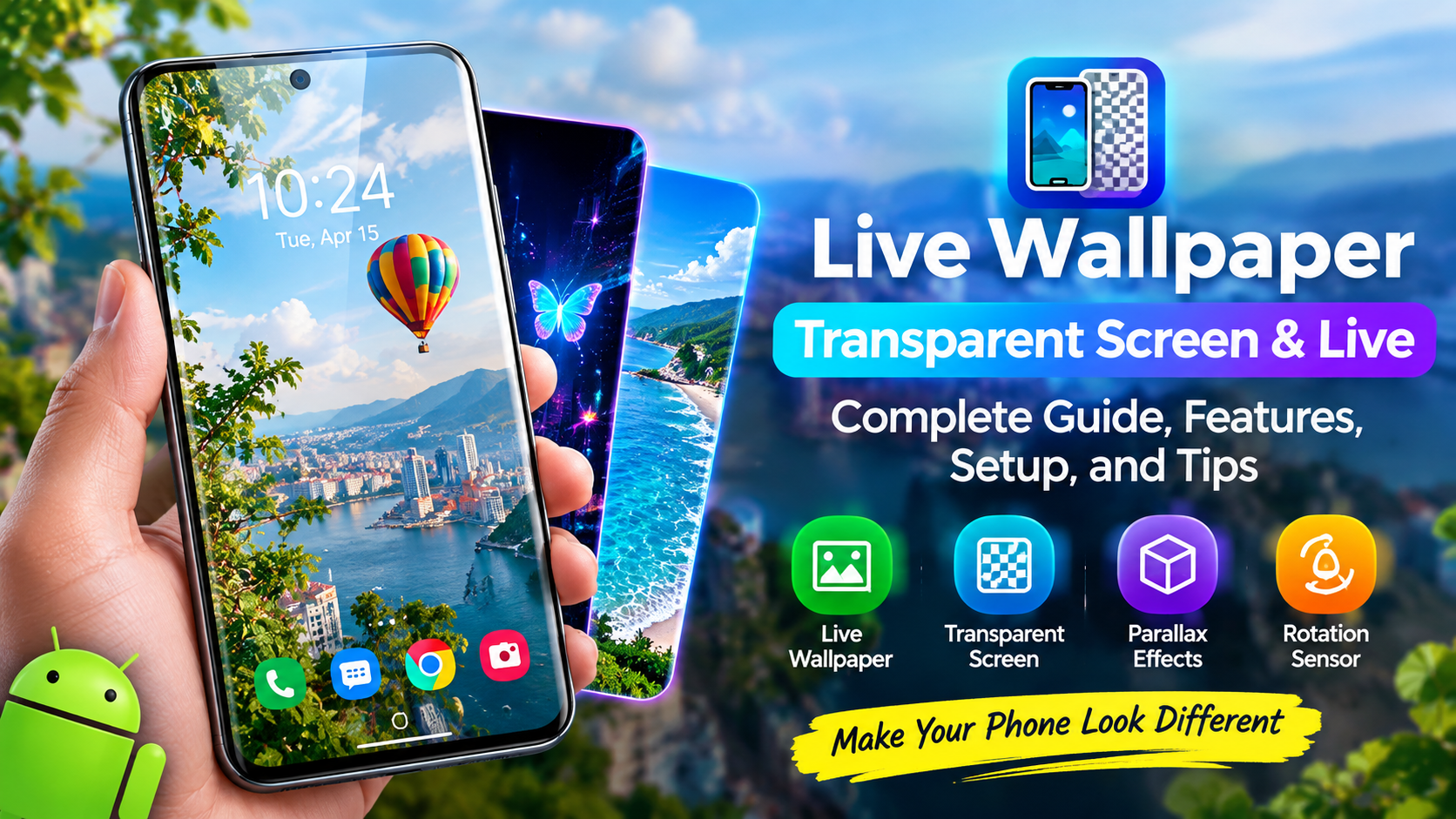
If you want to make your Android phone look more dynamic and visually interesting, Live Wallpaper Transparent Screen & Live offers an unusual combination of animated wallpapers and a transparent-screen effect. Instead of using a simple static background, the app is designed to create a more immersive appearance by combining motion, visual effects, and the phone’s camera-based transparency experience.
The concept is simple: your smartphone wallpaper becomes more than a fixed image. With Live Wallpaper Transparent Screen & Live, users can experiment with animated backgrounds, parallax-style effects, and a transparent-screen appearance that makes the phone feel different from the standard Android interface.
This guide explains what the app does, how its main features work, how to set it up, what to consider before using it, and how to get a better experience from a live wallpaper application.
What Is Live Wallpaper Transparent Screen & Live?
Live Wallpaper Transparent Screen & Live is an Android personalization app designed to change the visual appearance of a smartphone’s screen. Its main concept combines live wallpaper functionality with a transparent-screen effect.
Traditional wallpapers remain still when you move your phone. Live wallpapers can behave differently by introducing animation or movement. This can make the home screen feel more interactive and personalized.
The transparent-screen feature takes the idea further. Rather than displaying only a conventional background, the application can create an effect that makes the screen appear as though it is showing the environment behind or around the device.
The original app page describes the experience as a combination of a transparent screen and carefully designed live wallpaper effects. It also highlights parallax effects and the use of the phone’s rotation-vector sensor.
This makes the application particularly interesting for people who enjoy experimenting with Android customization.
Why Use Live Wallpaper Transparent Screen & Live?
There are many wallpaper applications available for Android, but a transparent-screen concept provides a different type of customization.
With Live Wallpaper Transparent Screen & Live, the purpose is not simply to replace an old picture with another image. Instead, the app attempts to create a moving and interactive visual experience.
Some of the reasons users may find this concept interesting include:
- A more dynamic home-screen appearance
- Animated wallpaper effects
- Parallax-style movement
- A transparent-screen visual effect
- Sensor-based interaction
- A different approach to Android customization
- Easy experimentation with the phone’s appearance
A live wallpaper can also make an otherwise ordinary device feel more personal. Users who frequently change wallpapers may enjoy having an effect that feels more interactive than a normal photograph.
Main Features of Live Wallpaper Transparent Screen & Live
The app focuses on several key functions. Understanding these features can help you decide whether this type of personalization is suitable for your device.
1. Live Wallpaper Effects
The primary feature is the live wallpaper experience. Instead of leaving the background completely static, the application can add movement and visual depth.
Animated wallpaper can make the home screen appear more energetic. Depending on the selected effect and device capabilities, movement may respond to how the phone is held or moved.
This type of wallpaper is especially useful for people who prefer animated interfaces over conventional still images.
2. Transparent Screen Effect
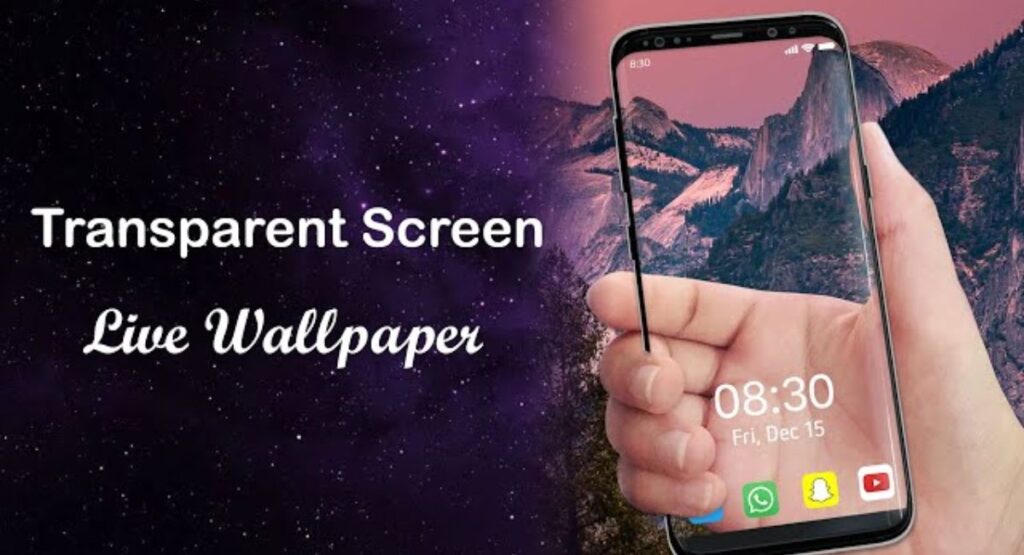
The transparent-screen function is one of the most distinctive aspects of Live Wallpaper Transparent Screen & Live.
The idea is to create an effect where the smartphone screen appears transparent. This can produce an interesting visual illusion and make the device look different from a standard Android phone.
The original listing explains that the transparent-screen mode can transform the desktop and lock-screen experience into a transparent-looking screen.
Because the effect can depend on camera and system permissions, users should review the permissions requested by the application before enabling related functionality.
3. Parallax Effects
Parallax is another important part of the application’s visual experience.
A parallax effect creates an impression of depth by allowing different visual elements to move at slightly different rates. When the phone moves, the wallpaper may appear to shift, creating a three-dimensional feeling.
This can make a wallpaper look more interesting than a completely flat background.
4. Rotation Sensor Support
The original page mentions a rotation-vector sensor as part of the wallpaper experience.
Sensor-based interaction can make the wallpaper respond to the movement or orientation of the device.
For example, when you tilt or rotate your smartphone, an animated background may appear to move accordingly. This creates a more interactive relationship between the user and the wallpaper.
However, sensor behavior can differ between Android devices because hardware capabilities are not identical on every phone.
How Does Live Wallpaper Transparent Screen & Live Work?
The basic idea is a combination of software effects and Android’s wallpaper system.
A live wallpaper application runs an animated background instead of displaying only a static image. The application can use animation, movement, and device sensors to create visual changes.
For the transparent-screen effect, the application can use the device’s camera-related functionality to produce the appearance of seeing through the screen.
The exact result depends on several factors, including:
- Android version
- Smartphone hardware
- Display technology
- Available sensors
- Camera permissions
- Battery optimization settings
- Wallpaper settings
- Device manufacturer software
Therefore, two phones can produce slightly different results even when using the same application.
How to Set Up Live Wallpaper Transparent Screen & Live
Setting up a live wallpaper application is generally straightforward, although Android menus can vary between manufacturers.
Step 1: Install the App
Start by obtaining the application from a trusted source. The existing Ayaanle Tech page provides a download link associated with Google Play.
Before installing any Android application, check its source and review the requested permissions.
Step 2: Open the Application
After installation, launch the app from your application drawer.
The first launch may display introductory information or request permissions needed for specific features.
Read permission requests carefully rather than automatically accepting every permission.
Step 3: Allow Necessary Permissions
A transparent-screen feature may require camera access because the effect depends on showing or simulating the environment behind the device.
Only grant permissions that make sense for the features you intend to use.
If you are uncomfortable with a particular permission, check whether the application can operate without it.
Step 4: Select the Wallpaper
Choose the live wallpaper option available in the application.
Depending on your Android version, you may be redirected to the system’s wallpaper settings.
Select the preferred live wallpaper and preview it before applying.
Step 5: Apply the Wallpaper
After previewing the effect, apply it to the home screen, lock screen, or both if your device supports that configuration.
Some Android manufacturers provide separate wallpaper controls, while others combine these options.
Step 6: Test the Effect
Move and tilt your phone slightly to see how the live wallpaper responds.
If the application uses sensor-based movement, you may notice changes as the phone’s orientation changes.
How to Get the Best Experience
Using a live wallpaper is easy, but a few adjustments can improve the overall experience.
Keep Your Home Screen Simple
A highly animated wallpaper combined with many widgets and icons can make the screen look crowded.
Consider keeping your home screen relatively clean so the animation remains visible.
Use Appropriate Brightness
Very high screen brightness can increase battery consumption. If you are using a live wallpaper continuously, moderate brightness can help reduce overall power usage.
Test Battery Consumption
Live wallpapers can require more processing than static images.
If you notice unusually fast battery drain, try disabling the effect temporarily and compare your device’s battery performance.
Check Sensor Behavior
If the wallpaper uses motion or orientation data, test how it responds to different movements.
If the animation feels too sensitive, check whether the app provides customization controls.
Keep Android Updated
System updates can affect wallpaper behavior, permissions, battery management, and background processes.
Keeping your phone updated can help maintain compatibility with modern applications.
Live Wallpaper Transparent Screen & Live and Battery Usage
Battery consumption is an important consideration for any live wallpaper.
A static image normally requires little processing after it has been loaded. An animated wallpaper, however, may continuously perform rendering tasks.
A transparent-screen effect can involve additional processing depending on how it is implemented.
Battery impact can vary significantly according to:
- Screen brightness
- Display refresh rate
- Processor efficiency
- Wallpaper animation
- Sensor usage
- Camera activity
- Android background restrictions
- How frequently the screen is active
If battery life is more important than visual effects, you may prefer to use the feature only when necessary.
On newer devices with efficient processors and displays, the impact may be less noticeable, but it should not be assumed to be identical on every phone.
Does Live Wallpaper Transparent Screen & Live Work on Every Android Phone?
The experience can vary from device to device.
Android is used by many manufacturers, and each company can modify the operating system. Hardware also differs significantly.
Some phones may have better support for sensor-based animation, while others may restrict background activity more aggressively.
Potential compatibility factors include:
- Android version
- Device manufacturer
- Camera implementation
- Motion sensors
- Display characteristics
- System permissions
- Battery optimization
- Wallpaper support
If a feature does not work as expected, check the application’s permissions and Android’s wallpaper settings first.
Common Problems and Solutions
The Transparent Effect Does Not Work
If the transparent-screen effect does not appear, first check whether the application has the necessary camera permission.
Open your phone’s application permission settings and verify the relevant permission.
If the problem continues, restart the application and test again.
The Wallpaper Is Not Moving
If the wallpaper appears static, check whether animation is enabled.
Some devices can also restrict background activity to save battery. Look at the application’s battery settings if the live effect stops unexpectedly.
The App Uses Too Much Battery
Try reducing screen brightness and checking the wallpaper’s animation settings.
You can also switch temporarily to a static wallpaper to determine whether the live wallpaper is contributing to battery usage.
The Effect Looks Different on Your Phone
This can happen because Android devices use different hardware and system software.
Sensor accuracy, camera behavior, screen resolution, and manufacturer-specific Android features can all influence the final result.
The Application Stops Running
Check Android’s battery optimization settings.
Some phones automatically restrict background applications. If the system places the wallpaper application under aggressive battery management, its animation may not behave as expected.
Is Live Wallpaper Transparent Screen & Live Easy to Use?
The concept is relatively simple for users who are already familiar with changing Android wallpapers.
The general process involves installing the app, opening it, allowing appropriate permissions, selecting an effect, and applying the wallpaper.
The most important part is understanding that the transparent-screen feature is an effect rather than an actual transparent display.
Your phone’s physical screen remains unchanged. The application creates a visual experience that gives the impression of transparency.
This distinction is useful because users should not expect the display hardware itself to become physically transparent.
Live Wallpaper Transparent Screen & Live for Personalization
Android is popular partly because it allows users to customize many aspects of their devices.
Wallpaper customization is one of the easiest ways to change the appearance of a phone.
A static wallpaper can reflect a favorite photograph, color, landscape, or design. A live wallpaper can go further by adding motion.
Live Wallpaper Transparent Screen & Live takes this idea in another direction by combining motion with a transparent-style visual effect.
For users who like experimenting with unusual interfaces, this can make the phone feel more distinctive.
Advantages of Live Wallpaper Transparent Screen & Live
There are several potential advantages to using this type of application.
Unique Visual Appearance
The transparent effect can make the phone look different from a standard Android setup.
Animated Background
Motion can add energy to the home screen and make it feel more interactive.
Sensor-Based Experience
Support for device orientation can make wallpaper movement feel more natural.
Easy Customization
Changing the wallpaper can provide a quick way to refresh the appearance of a smartphone.
Interesting Visual Experiment
The transparent-screen concept is different from conventional wallpaper applications and can be fun to experiment with.
Things to Consider Before Using It
Despite its interesting features, users should consider a few factors before relying on a live wallpaper.
First, live effects may consume more resources than static wallpapers.
Second, camera-related functionality means permission management is important.
Third, compatibility may vary across different Android phones.
Finally, visual effects are subjective. What looks impressive to one person may feel distracting to another.
For these reasons, it is best to test the application on your particular device and adjust the settings according to your preferences.
Privacy and Permission Considerations
Whenever you install an application, permissions deserve attention.
A transparent-screen experience may require camera access because the application needs to display camera-related content or create its transparency effect.
Before granting permission, read what Android tells you about the requested access.
If a permission appears unrelated to the feature you want to use, consider whether you actually need to grant it.
You can also review permissions later through Android’s application settings on supported devices.
Good permission management is an important part of responsible Android customization.
Performance Tips
To maintain smooth performance while using Live Wallpaper Transparent Screen & Live, consider these tips:
- Close unnecessary applications if your phone has limited memory.
- Avoid extremely high screen brightness when it is not needed.
- Keep the device software updated.
- Check battery optimization settings.
- Disable the live effect when maximum battery life is required.
- Restart the application if the animation becomes unresponsive.
- Make sure required permissions remain enabled.
- Avoid running many demanding visual applications simultaneously.
These simple steps can help maintain a smoother experience.
See Also: https://ayaanletech.org/tea-app-dating-for-women/
FAQs
What is Live Wallpaper Transparent Screen & Live?
It is an Android personalization application that combines animated wallpaper effects with a transparent-style screen experience. The original app description highlights live wallpaper, parallax effects, transparent-screen functionality, and sensor-based interaction.
Is the transparent screen actually transparent?
No. The phone’s physical display does not become transparent. The application creates a visual effect that gives the appearance of transparency.
Does the app use live wallpapers?
Yes. Live wallpaper functionality is one of its main features.
Can the wallpaper respond to phone movement?
The original description mentions a rotation-vector sensor, meaning supported devices can use orientation information as part of the visual experience.
Will it work on every Android phone?
Not necessarily. Performance and feature availability can vary depending on Android version, hardware, sensors, permissions, and manufacturer-specific software.
Can live wallpaper affect battery life?
It can. Animated wallpapers generally require more processing than static images, although the actual impact depends on the device and the selected effect.
Does the transparent effect require camera access?
Depending on the implementation and feature being used, camera access may be required. Always review Android’s permission prompt before granting access.
Can I remove the live wallpaper later?
Yes. You can normally change your wallpaper through your phone’s standard wallpaper settings.
Is a live wallpaper better than a static wallpaper?
It depends on your priorities. Live wallpapers provide movement and visual effects, while static wallpapers are generally simpler and may use fewer resources.
Why does the effect look different on different phones?
Android devices have different sensors, processors, cameras, displays, operating-system versions, and manufacturer software. These differences can affect visual behavior.
Final Thoughts
Live Wallpaper Transparent Screen & Live is an interesting option for Android users who want something more visually engaging than a conventional static wallpaper. Its combination of live wallpaper, parallax movement, sensor interaction, and a transparent-style screen effect gives the personalization experience a distinctive character.
The application is especially appealing to people who enjoy experimenting with their phone’s appearance. Rather than simply selecting a new photograph, users can introduce motion and a visual illusion that changes the overall feel of the home screen.
At the same time, users should keep practical considerations in mind. Battery consumption, permissions, device compatibility, and Android’s background restrictions can influence the experience.
The best approach is to install the application from a trusted source, review permissions carefully, test the available features, and adjust the settings based on your device.
If you enjoy animated interfaces and want to try a different approach to Android customization, Live Wallpaper Transparent Screen & Live provides an interesting way to transform the look of your phone while keeping the setup relatively simple.