

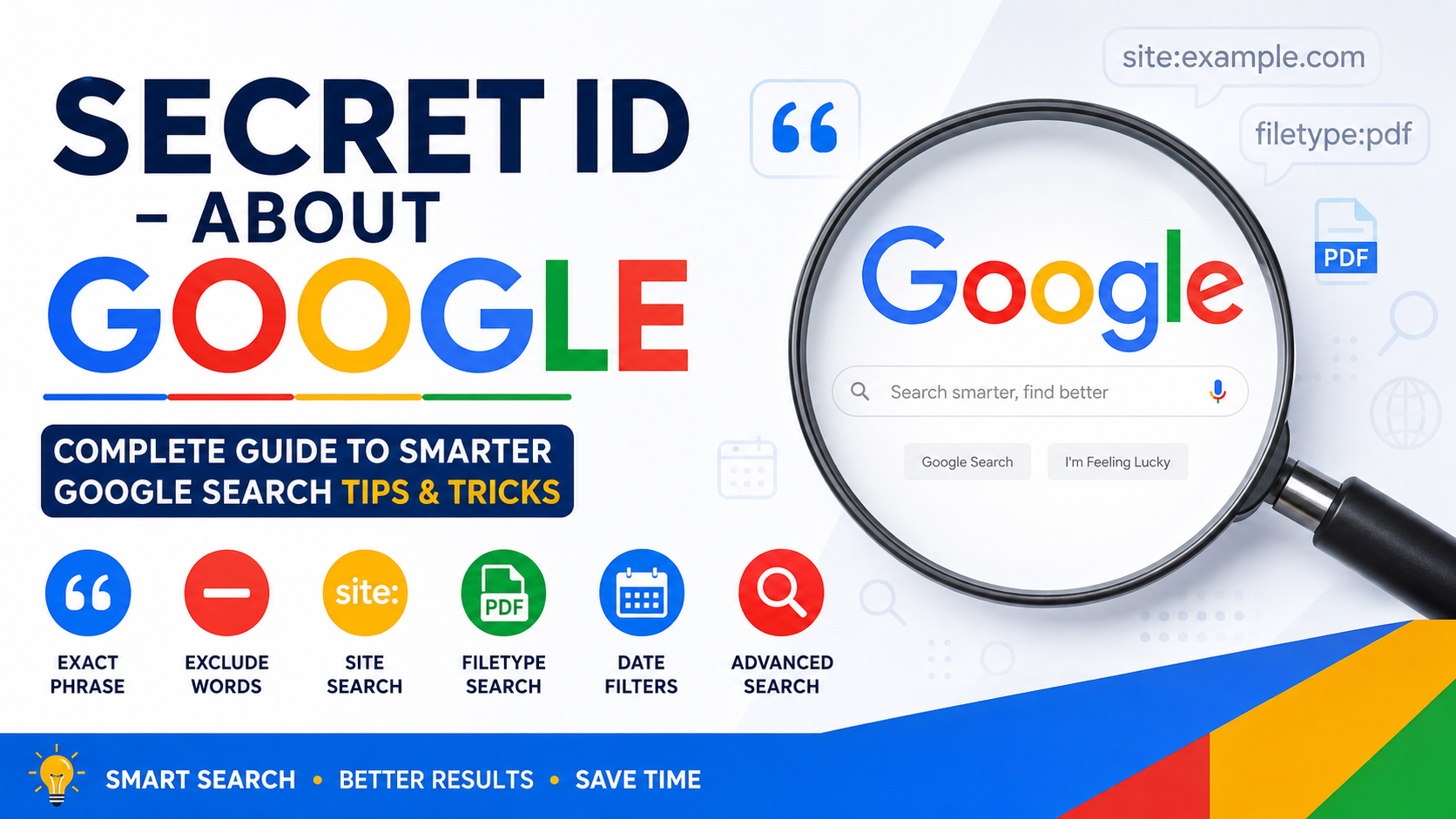
Secret ID – about Google is a practical guide for anyone who wants to search Google more accurately, quickly, and efficiently. Google Search is extremely powerful, but many people use only simple words when searching for information. As a result, they may receive thousands or even millions of results and spend a lot of time opening pages that are not useful.
The good news is that you can make your searches much more precise by using specific keywords, quotation marks, minus signs, search operators, filters, and Google’s Advanced Search tools. These techniques help you tell Google exactly what type of information you are looking for.
This Secret ID – about Google guide explains the most useful search techniques in simple language. Whether you are a student, researcher, blogger, website owner, professional, or everyday internet user, these methods can help you find relevant information faster.
Google itself recommends making searches more specific and provides tools and filters for refining results. (Google Support)
What Is Secret ID – About Google?
Secret ID – about Google refers to useful Google Search techniques that are not always obvious to beginners. These are not secret ID passwords or hidden accounts. Instead, the phrase describes practical search methods that can help users get better results from Google.
For example, instead of searching for:
digital marketing
you can make the query more specific:
digital marketing SEO guide
Or, if you want an exact phrase, you can put quotation marks around it:
“digital marketing SEO guide”
Google supports several methods for narrowing or refining searches, including exact phrases, site searches, excluded terms, file types, and other search options. (Google Support)
Understanding these techniques can completely change the way you use Google.
Why Secret ID – About Google Search Techniques Matter
Many users type a few general words into Google and immediately start opening results. This works for simple questions, but it is not always efficient.
Suppose you are looking for a PDF document about business management. A general search might produce web pages, videos, articles, images, and unrelated results.
A more focused search can tell Google that you specifically want a PDF.
For example:
business management filetype:pdf
This type of search can save time because your query provides additional information about what you want.
The main benefits of learning Secret ID – about Google search techniques include:
- Faster information discovery
- More relevant search results
- Less time spent browsing irrelevant pages
- Easier research
- Better academic searching
- More efficient website research
- Easier document discovery
- Better control over search results
- More accurate searches
- Improved online research skills
Google also explains that search terms and related terms help its systems understand what a user is looking for, so being specific can improve the usefulness of results. (Google Support)
1. Use Specific Keywords
One of the simplest Secret ID – about Google techniques is using specific keywords.
A broad keyword often produces broad results. Adding useful details makes the search more focused.
Example
Instead of:
laptops
try:
best laptops for students
Instead of:
accounting
try:
accounting ratio analysis examples
Instead of:
Power BI
try:
Power BI data dashboard tutorial
The more clearly you describe your search intent, the easier it becomes to locate useful information.
Google recommends using descriptive and specific words rather than vague terms when searching. (Google Support)
Why Specific Keywords Help
Specific searches can help you:
- Reduce irrelevant results
- Find answers faster
- Identify useful resources
- Search for a particular topic
- Improve research efficiency
This is one of the easiest techniques to remember from this Secret ID – about Google guide.
2. Search for an Exact Phrase
Quotation marks are one of the most useful Google search techniques.
When you put a word or phrase inside quotation marks, you are asking Google to look for that exact phrase.
Example
"Secret ID - about Google"
You can also search for an exact title:
"Power BI dashboard"
or an exact sentence:
"how to create a business dashboard"
This technique is especially useful when you know the exact wording of something.
Google’s search guidance confirms that quotation marks can be used to search for an exact word or phrase. (Google Support)
When Should You Use Quotes?
Use quotation marks when searching for:
- Article titles
- Book titles
- Exact phrases
- Names
- Technical terms
- Specific sentences
- Product names
- Unique expressions
For example:
"Secret ID - about Google"
can be much more targeted than:
Secret ID about Google
3. Use the Minus Sign to Exclude Words
Another useful Secret ID – about Google technique is the minus sign.
If a search word has multiple meanings, you can tell Google which meaning you do not want.
Example
Suppose you want information about the animal jaguar rather than the automobile brand.
You could search:
jaguar -car
The minus sign tells Google to exclude a particular term from the query. Google documents the minus operator as a way to exclude unwanted words from search results. (Google Support)
Other Examples
apple fruit -iphone
python programming -snake
jaguar animal -car
This technique is especially useful when a keyword has several different meanings.
4. Search Within a Specific Website
The site: operator is another powerful part of Secret ID – about Google.
It allows you to search for information within a particular website or domain.
Example
site:google.com search
This asks Google to find relevant results from the specified domain.
You can also search a website for a specific topic:
site:example.com SEO
This can be useful when you know that a particular website contains the information you need but you do not know where the information is located.
Google’s search documentation specifically describes site: as a way to search within a particular website or domain. (Google Support)
Why Site Search Is Useful
It can help you:
- Search a large website
- Find old articles
- Locate specific topics
- Find pages that are difficult to navigate to manually
- Research a particular domain
- Check whether pages from a website appear in Google
For example:
site:example.com "digital marketing"
can focus the search on pages from that domain containing the requested topic.
5. Search for Specific File Types
If you are looking for a particular document format, the filetype: operator can be useful.
For example:
business plan filetype:pdf
This indicates that you are interested in PDF files.
You can also search for other supported document formats, depending on what is indexed.
Examples
marketing strategy filetype:pdf
business presentation filetype:ppt
financial report filetype:pdf
accounting notes filetype:doc
Google’s search tools include file-type filtering as part of its advanced search functionality. (Google)
Why Filetype Search Is Helpful
Students and researchers can use file-type searches to find:
- PDF documents
- Presentations
- Reports
- Research materials
- Word documents
- Spreadsheets
- Other indexed file formats
This is one of the most practical techniques included in Secret ID – about Google.
6. Use Google’s Advanced Search
If normal search does not provide the results you want, Google Advanced Search can provide additional controls.
Google’s Advanced Search page allows users to enter:
- All words
- An exact word or phrase
- Words they do not want
- A particular site or domain
- A file type
- A date range
- A language
- Usage rights
(Google)
This makes Advanced Search especially useful for detailed research.
When to Use Advanced Search
You may want to use it when:
- Your search is complicated
- You need a particular file format
- You want results from a specific domain
- You need a particular language
- You want to narrow results by date
- You want to exclude certain terms
Instead of remembering every operator, you can use Google’s Advanced Search interface.
7. Combine Search Operators
A particularly useful Secret ID – about Google strategy is combining multiple search techniques.
For example:
site:example.com "SEO guide" filetype:pdf
This combines:
- A specific website
- An exact phrase
- A specific file type
Another example could be:
site:example.com marketing -jobs
This searches within a website while excluding a particular word.
Combining operators can make complicated searches considerably more precise.
However, you should avoid making searches unnecessarily complicated. Start with the most important terms and add operators only when they solve a specific problem.
8. Use OR for Alternative Searches
Sometimes you are interested in more than one possible word or phrase.
Google supports OR for combining alternatives.
For example:
SEO OR digital marketing
This tells Google that either term may be relevant.
You could also use:
college OR university
or:
laptop OR notebook
Google’s search documentation includes OR as a way of combining alternative search expressions. (Google Support)
Why OR Is Useful
OR is helpful when:
- Different terms describe the same topic
- You are unsure which wording a website uses
- You want to broaden a search
- You want to compare related concepts
9. Search by Date
Fresh information can be important for topics such as technology, news, software, finance, and current events.
Google provides search filters that can help narrow results by time. Its Advanced Search interface includes options such as the past hour, past 24 hours, past week, past month, and past year. (Google)
For example, you might want information published recently about:
Google Search updates
You can then use available date filters to narrow the results.
Why Date Filtering Matters
Older information can sometimes be less useful for subjects that change frequently. Date filtering can help you locate more recent pages when freshness matters.
10. Search in Different Languages
Google also provides language-related search settings.
If you are researching a topic in a particular language, Advanced Search can help narrow results by language. Google’s Advanced Search interface includes a language option. (Google)
This can be particularly useful for multilingual research.
For example, someone researching a subject in English may want English-language sources, while another user may prefer Urdu, Arabic, Spanish, or another language.
11. Use Search Filters
Google Search can provide filters after you enter a query. Depending on the search, filters can include categories such as:
- Web
- Images
- News
- Maps
- Videos
- Shopping
- Forums
- Books
- Short videos
The available filters can change depending on the query and Google’s systems. (Google Support)
This means you do not always need to change your search query. Sometimes you can simply select the appropriate search category.
For example:
- Looking for pictures? Use Images.
- Looking for current reporting? Try News.
- Looking for videos? Use Videos.
- Looking for places? Use Maps.
- Looking for text-based web pages? Use Web.
12. Search for Information on a Specific Domain
Domain-focused searching is another important research technique.
For example:
site:.edu business management
can help focus a search on educational domains.
Similarly:
site:.gov business regulations
can focus a search on government domains where applicable.
The site: operator is particularly useful when you already know the type of website you want to investigate. (Google Support)
13. Use Google Search for Research
Students can benefit significantly from the techniques explained in Secret ID – about Google.
Instead of searching with a single broad phrase, students can create more detailed queries.
Example
Basic:
entrepreneurship
Better:
entrepreneurship process definition
More targeted:
"entrepreneurship process" filetype:pdf
This approach can make research more organized.
Students can also combine keywords with specific file types, websites, and phrases to locate study materials more efficiently.
14. Use Google Search for Website Research
Website owners can also benefit from advanced search techniques.
For example, a website owner may want to investigate whether particular pages are indexed by Google.
A site: search can be useful for checking pages associated with a domain.
Example:
site:example.com
You can then add a keyword:
site:example.com SEO
This can help you explore pages that Google has associated with a particular domain.
Keep in mind that search results are not a complete technical indexing report. For detailed website indexing diagnostics, website owners should use appropriate webmaster and search-management tools.
15. Use Google Search More Efficiently
Learning Secret ID – about Google is not about memorizing dozens of complicated commands.
The most important principle is simple:
Tell Google exactly what you want.
Start with a clear query.
Then ask yourself:
- Do I need an exact phrase?
- Do I need a specific website?
- Do I need a particular file type?
- Do I need to exclude a word?
- Do I need recent results?
- Do I need a particular language?
- Do I need images, videos, news, or another search category?
Answering these questions can help you build a much better search query.
16. Common Google Search Mistakes
Even though Google is easy to use, people often make mistakes when searching.
Mistake 1: Using Very Broad Keywords
Searching only one general word can produce too many results.
Instead, add meaningful details.
Mistake 2: Ignoring Exact Phrases
If you know the exact wording, quotation marks can help.
Mistake 3: Forgetting the Minus Operator
If a word has multiple meanings, use - to remove unwanted results.
Mistake 4: Searching Manually Through a Website
If you know the website, try the site: operator.
Mistake 5: Ignoring File Types
If you specifically need a PDF, add filetype:pdf or use Advanced Search.
Mistake 6: Not Using Filters
Search filters can help you switch between web pages, images, news, videos, and other result types.
Mistake 7: Making Queries Too Complicated
Adding too many operators can make a search confusing. Start simple and make the query more specific only when necessary.
17. Secret ID – About Google Quick Examples
Here are some practical examples you can remember:
| Goal | Example |
|---|---|
| Exact phrase | "Secret ID - about Google" |
| Specific website | site:example.com SEO |
| PDF document | SEO filetype:pdf |
| Exclude a word | jaguar -car |
| Alternative terms | college OR university |
| Specific topic | Power BI dashboard tutorial |
| Recent information | Search topic + use date filters |
| Images | Search topic + Images filter |
| Videos | Search topic + Videos filter |
These examples demonstrate how a small change in the search query can make Google much more useful.
18. How to Become a Google Power User
Becoming a better Google user requires practice.
You do not need to memorize every search operator immediately. Start with a few essential techniques:
Quotes → Exact phrase
Minus → Exclude
site: → Specific website
filetype: → Specific document type
OR → Alternatives
Filters → Narrow the result category
Advanced Search → More detailed controls
Once you understand these basics, you can gradually combine them.
For example:
site:example.com "business plan" filetype:pdf
is much more targeted than:
business plan
The goal is not to search more. The goal is to search smarter.
19. Secret ID – About Google and Better Online Research
Good searching is an important digital skill.
Whether you are writing an article, preparing an assignment, studying for an exam, researching a business topic, looking for a document, or simply trying to answer a question, search quality affects how quickly you find useful information.
Secret ID – about Google provides a foundation for developing this skill.
A good researcher does not simply type random keywords. Instead, they think about:
- What information do I need?
- Which words best describe it?
- Is there an exact phrase?
- Do I need a particular website?
- Do I need a document?
- Do I need recent information?
- Do I need to remove irrelevant topics?
This mindset can dramatically improve search efficiency.
20. Final Google Search Strategy
The best way to remember this entire Secret ID – about Google guide is to follow a simple process.
Step 1: Start With Your Main Topic
Write the most important words.
Step 2: Add Details
Describe exactly what you need.
Step 3: Add Quotes When Necessary
Use quotation marks for an exact phrase.
Step 4: Remove Unwanted Results
Use the minus sign when a term creates irrelevant results.
Step 5: Limit the Website
Use site: when you want results from a particular domain.
Step 6: Choose a File Type
Use filetype: when looking for a specific document format.
Step 7: Use OR for Alternatives
Use OR when either of two terms may be useful.
Step 8: Use Filters
Select Web, Images, News, Videos, Maps, or another appropriate category.
Step 9: Try Advanced Search
Use Google’s Advanced Search when you need more detailed controls.
Step 10: Review Your Search
If the results are not useful, change your keywords rather than repeatedly opening unrelated pages.
FAQs
What is Secret ID – about Google?
Secret ID – about Google is a practical concept for learning useful Google Search techniques. It focuses on search operators, exact phrases, filters, website searches, file searches, and Advanced Search methods.
Is Secret ID – about Google a secret Google password?
No. The phrase does not represent a Google password, account code, or private access key. It is better understood as a guide to useful Google searching techniques.
What is the most useful Google search trick?
There is no single best trick for every situation. Exact phrases, site:, filetype:, and the minus operator are among the most useful techniques for targeted searches.
What is the most useful Google search trick?
Put the phrase inside quotation marks.
Example:"Secret ID - about Google"
Google supports quotation marks for exact phrase searches. (Google Support)
How do I search only one website?
Use the site: operator.
Example:site:example.com marketing
This focuses the search on the specified website or domain. (Google Support)
How can I search for PDF files?
Use the filetype: operator.
Example:business management filetype:pdf
You can also use Google’s Advanced Search interface and choose a file type. (Google)
How can I remove unwanted results?
Use a minus sign before the unwanted term.
Example:jaguar -car
Google documents the minus operator as a method for excluding words from searches. (Google Support)
Does Google Advanced Search still exist?
Yes. Google provides an Advanced Search interface with controls for exact phrases, excluded words, websites, file types, dates, languages, and other options. (Google)
Conclusion
Secret ID – about Google is ultimately about learning how to search with purpose. Google already provides an enormous amount of information, but the quality of your search query can determine how efficiently you find the information you need.
Start by using specific keywords. When necessary, place exact phrases inside quotation marks. Use the minus sign to remove unwanted terms, site: to search within a particular domain, and filetype: to look for particular document formats. You can also use OR for alternative terms and Google’s filters and Advanced Search tools for additional control.
Google’s official search guidance confirms that users can refine searches with specific terms, exact phrases, exclusions, site restrictions, filters, and Advanced Search features. (Google Support)
The most important lesson from this Secret ID – about Google guide is simple: do not just search harder—search smarter.
Once these techniques become familiar, Google Search can become a much more precise research tool for everyday questions, education, professional research, website research, and information discovery.